Add text-to-speech narration to your clips
Type your text, pick a voice, and add AI narration to any part of your clip. Great for commentary, reactions, and memes.
Text to Speech
Add a whole new layer to your clips with AI narration
Text-to-speech adds a whole new layer to your clips. Narrate a replay, add commentary you forgot to say live, or create meme-worthy voiceovers that your community will quote. TTS is one of the most-used features on TikTok for a reason - it grabs attention and keeps viewers watching.
StreamLadder's Clip Editor lets you type any text, pick from multiple AI voices, and preview the audio before placing it. Drag the generated narration to the exact moment on the timeline, adjust the volume balance with your clip audio, and export.
TTS works especially well for setup and punchline clips. Add narration at the start to set the scene ("watch what happens next..."), then let the clip play out naturally. Or add a reaction voice after the highlight for comedic effect.
Layer TTS with captions so viewers see and hear the narration. Add background music to set the mood, and use zoom effects on the key moment. Publish the finished clip to every platform with the Content Publisher.
Text to Speech
How Text to Speech works
Type it. Pick a voice. Place it on the timeline.
01

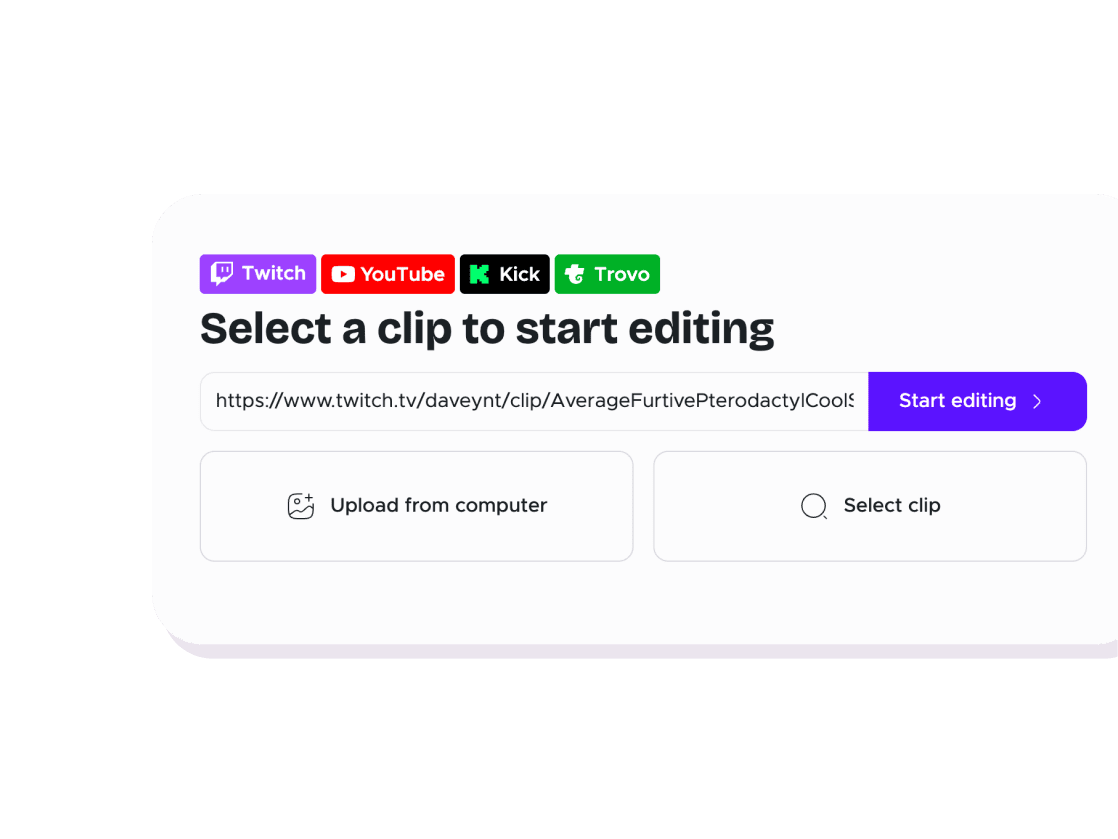
Open your clip in the editor
Import a clip by URL or upload a video file.
02

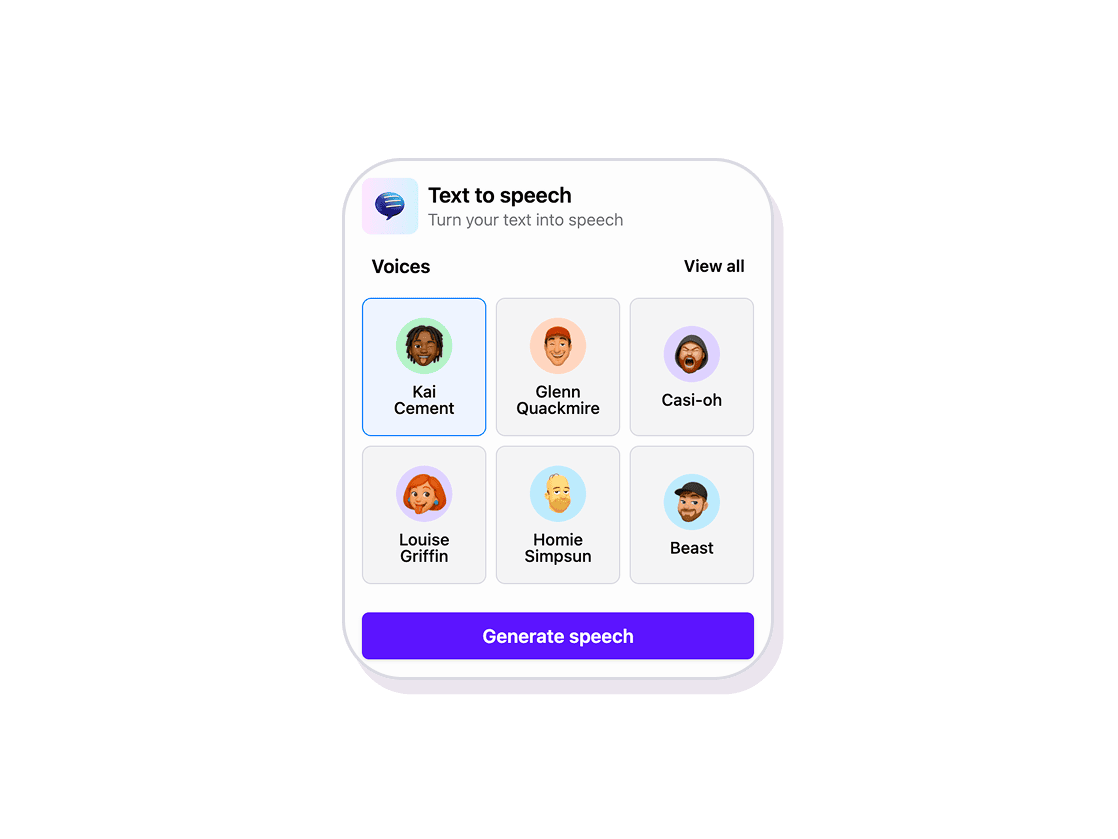
Type text and pick a voice
Type what you want said, then choose from multiple AI voices. Preview the audio before placing it.
03

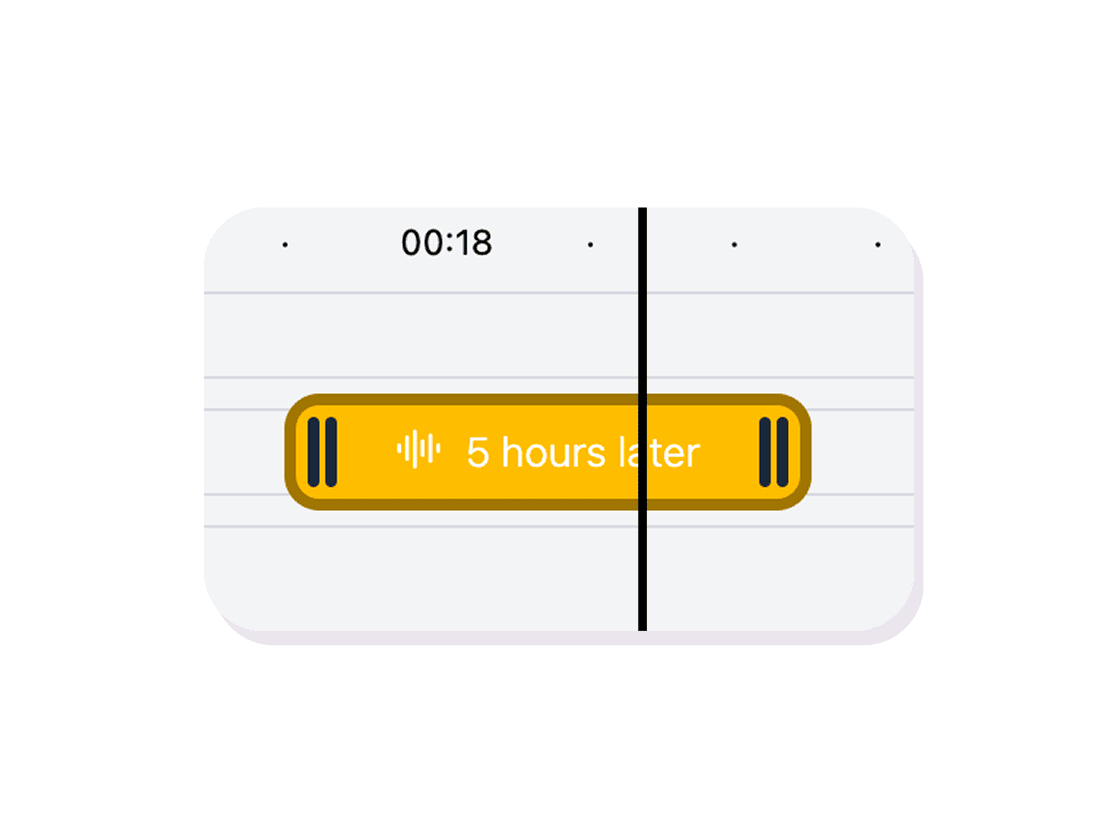
Place narration on the timeline
Drag the generated audio to the exact moment you want it to play. Adjust volume and timing.
Clip Editor
Add text-to-speech narration to your clips
Type your text, pick a voice, and add AI narration to any part of your clip. Great for commentary, reactions, and memes.
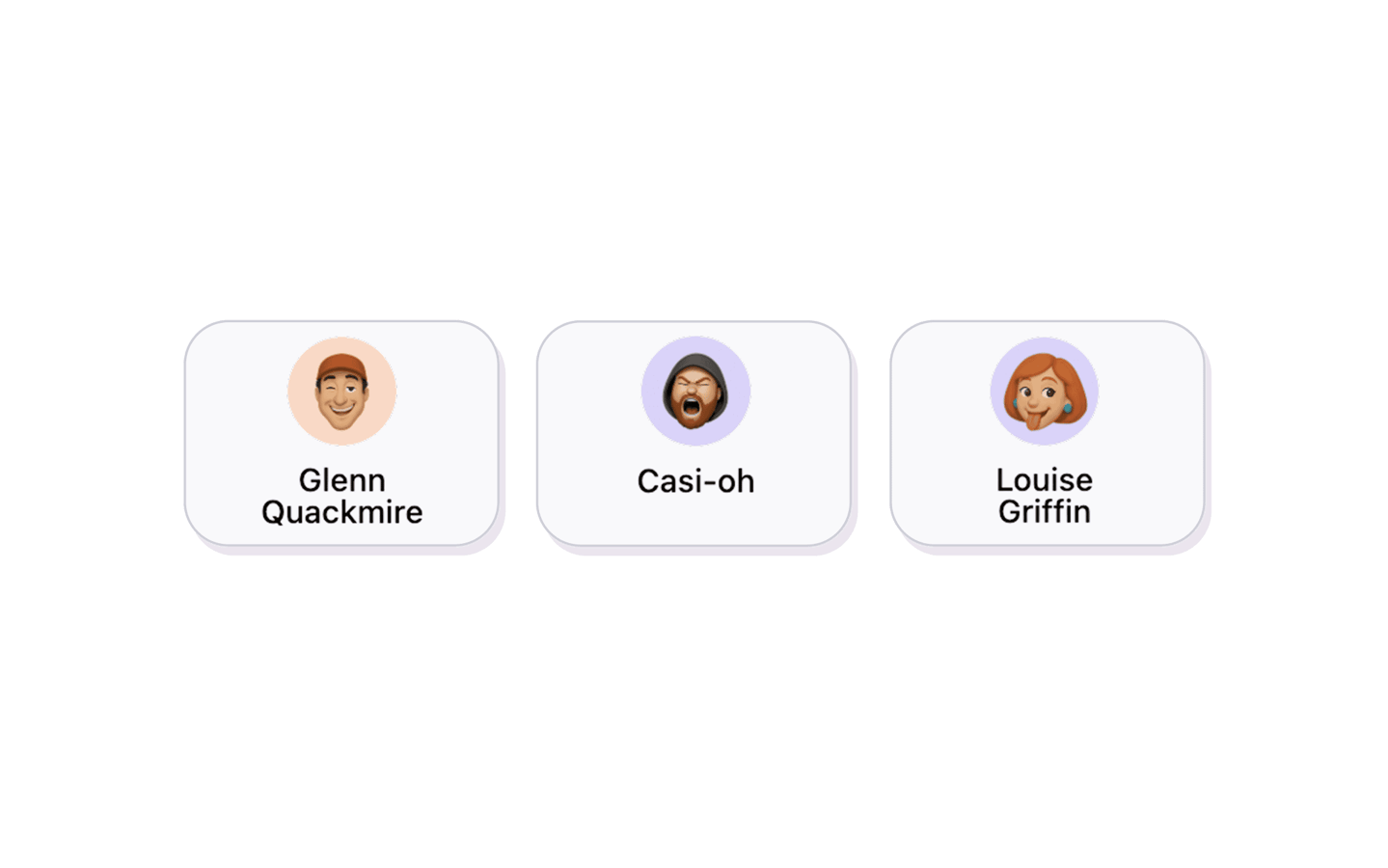
Multiple AI voices
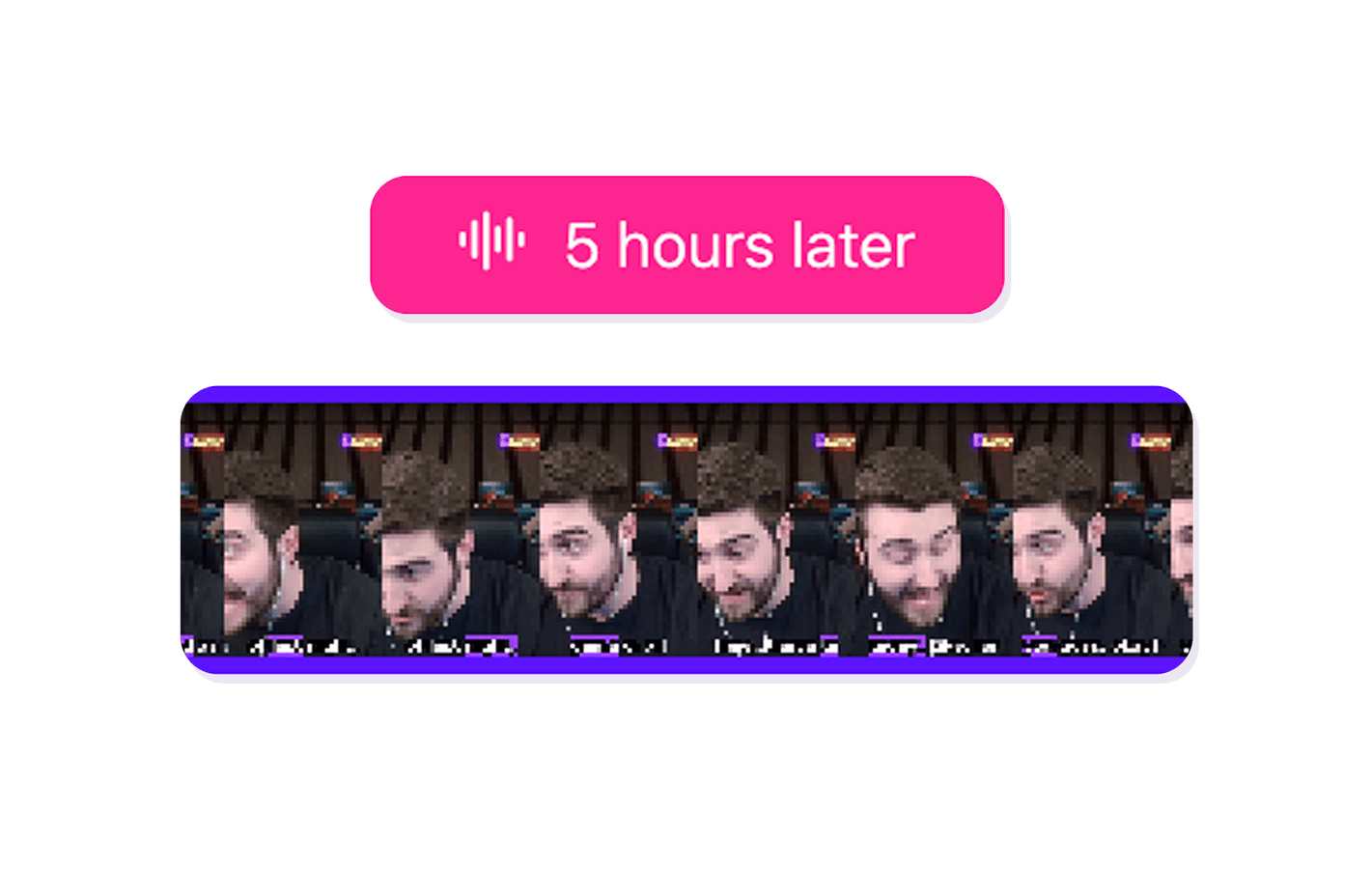
Natural-sounding and meme-style voices to match any tone. Preview each voice before placing it in your clip.
Precise placement
Drag the generated audio to the exact second on the timeline. Layer it over or between your original clip audio.
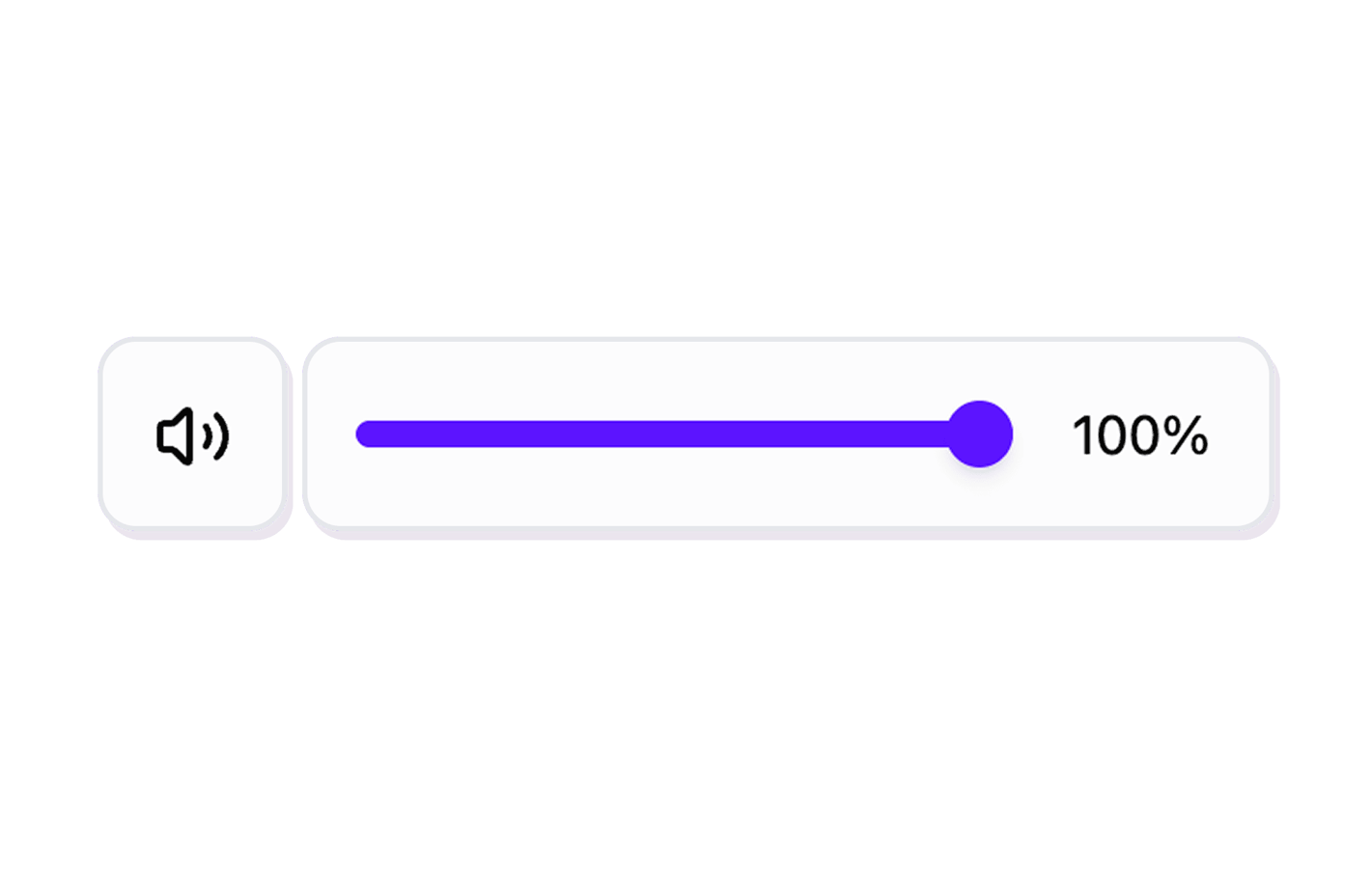
Volume control
Balance TTS volume against your clip audio so both are clear. Adjust each layer independently.
Explore Clip Editor features
11 million clips made by 1 million streamers
Real clips made by real creators using StreamLadder - totalling over a hundred million views.
AhmetZone
Kai Standing Next To Basketball Players

@SomethingAboutChickens
Something About Chickens
Original sound · SomethingAboutChickens
AhmetZone
LIL BRO

@Stormwynne
EVIL DEER - Pumpkin Panic
Original sound · Stormwynne
JKPlays
guess my IQ

@Bobby Plays
COD Points the cheap way
Original sound · Bobby Plays
TheJuiceDen
xQc Reacts to LEGO Car VS. Growing Wall

Ubietoo
Greatest goal ever scored
Original sound · Ubietoo
TheJuiceDen
Divorce any% Speedrun

@Payzren
Mistaken for a voice actor
Original sound · Payzren
AsmonEnjoyer
Girls Cosplays VS Boys Cosplays

@Shaafes_
Hilarious Extraction Fail
Original sound · Shaafes_
AhmetZone
Kai Standing Next To Basketball Players
@SomethingAboutChickens
Something About Chickens
Original sound · SomethingAboutChickens
AhmetZone
LIL BRO
@Stormwynne
EVIL DEER - Pumpkin Panic
Original sound · Stormwynne
JKPlays
guess my IQ
@Bobby Plays
COD Points the cheap way
Original sound · Bobby Plays
TheJuiceDen
xQc Reacts to LEGO Car VS. Growing Wall
Ubietoo
Greatest goal ever scored
Original sound · Ubietoo
TheJuiceDen
Divorce any% Speedrun
@Payzren
Mistaken for a voice actor
Original sound · Payzren
AsmonEnjoyer
Girls Cosplays VS Boys Cosplays
@Shaafes_
Hilarious Extraction Fail
Original sound · Shaafes_
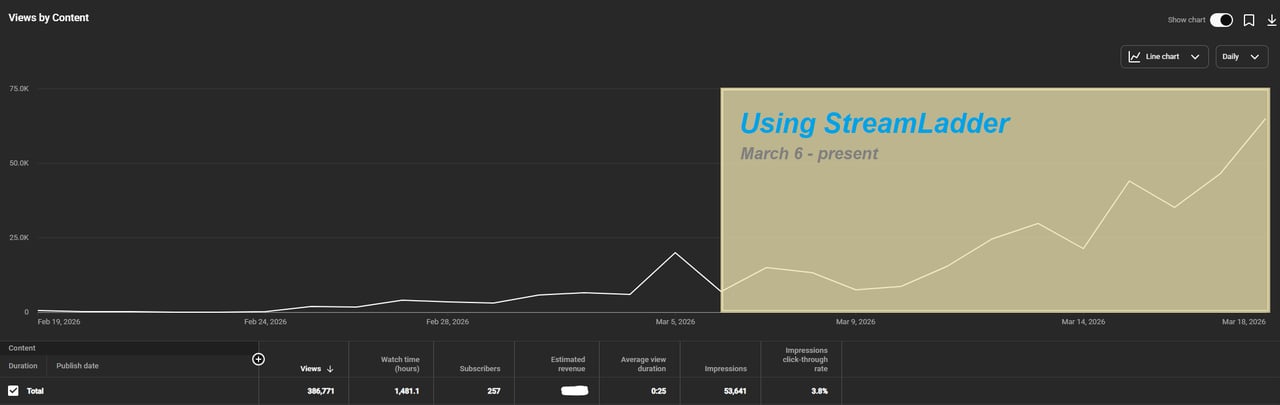
"StreamLadder's ClipGPT actually knows what clips will go viral. 48% of my sub growth from shorts was within just the last 2 weeks."

Bokaj392
SmoothestMango
Vohan

Supersonic540
NotAllergicToShrimp
that_noel
MADeightysix

Roman Gambit

Loïc Lacourt - Lo_Level31
BigTaffMan

JibbletGibbler
Richatat

Kanchi64

BigBadWolf19722
nathan_the_mad
KatsforKiowa

Da_Gipfla

killadillag_tav

Dennabeast

RealMikeTheVike
https://youtube.com/@sidechopper
BIGEXAMPL

HistoryGangster
PunkRockNova
ItsJustFreshh
Bia Bunny

Christopher Dutcher
Crunchess
daizy
Damond Rickson
RiotEmpress
Nixie

KeithLovesGaming
daizy
kevin laderriere
Rulaxalt

Metaodos

Echozday
zerofaith/kick.com
ZBMBLive

https://www.twitch.tv/bsc_rio
twitch.tv/masterjoful

youtube.com/thestizzness
tiktok.com/@captainquain
DoubleNexus
https://www.twitch.tv/itzbuddytv
https://www.twitch.tv/dice_gaminggbr
Twitch.tv/daddymacgaming50474
www.twitch.tv/ishigonite

https://www.twitch.tv/gemstonelive
Bokaj392
SmoothestMango
Vohan
Supersonic540
NotAllergicToShrimp
that_noel
MADeightysix
Roman Gambit
Loïc Lacourt - Lo_Level31
BigTaffMan
JibbletGibbler
Richatat
Kanchi64
BigBadWolf19722
nathan_the_mad
KatsforKiowa
Da_Gipfla
killadillag_tav
Dennabeast
RealMikeTheVike
https://youtube.com/@sidechopper
BIGEXAMPL
HistoryGangster
PunkRockNova
ItsJustFreshh
Bia Bunny
Christopher Dutcher
Crunchess
daizy
Damond Rickson
RiotEmpress
Nixie
KeithLovesGaming
daizy
kevin laderriere
Rulaxalt
Metaodos
Echozday
zerofaith/kick.com
ZBMBLive
https://www.twitch.tv/bsc_rio
twitch.tv/masterjoful
youtube.com/thestizzness
tiktok.com/@captainquain
DoubleNexus
https://www.twitch.tv/itzbuddytv
https://www.twitch.tv/dice_gaminggbr
Twitch.tv/daddymacgaming50474
www.twitch.tv/ishigonite
https://www.twitch.tv/gemstonelive
FAQ
Frequently asked questions
Multiple AI voices including natural-sounding male and female options, plus meme-style robotic voices. More voices on the Starter plan.
Currently English voices are available. Additional languages are being added.
Yes - the TTS audio plays alongside your clip audio. Adjust the volume balance so both are clear.
Each TTS segment supports up to 500 characters. Add multiple segments for longer narration.