Automatically remove dead air from your clips
AI detects silent or low-energy sections and cuts them out. Keep the action, remove the waiting. Makes clips tighter and more engaging.
Remove Silences
Dead air kills retention - cut it automatically
Dead air kills retention. Every second of silence in a clip is a chance for the viewer to scroll away. StreamLadder's Clip Editor uses AI to scan your clip, detect silent and low-energy sections, and cut them out automatically - leaving you with a tighter, faster-paced clip that holds attention.
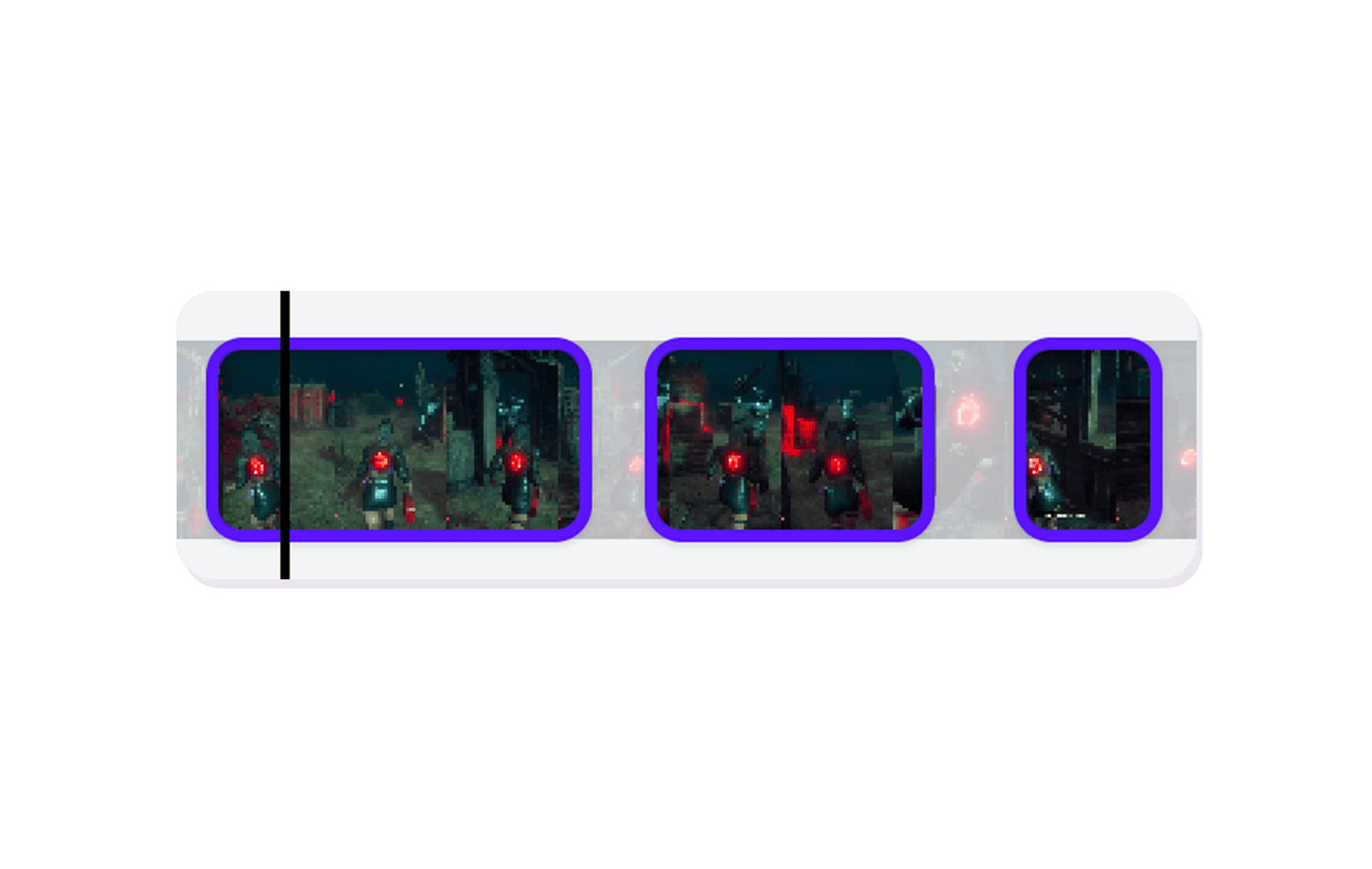
The AI is smart about it. It keeps natural breathing room between sentences so the edit feels smooth, not choppy. Adjust the sensitivity threshold to be more or less aggressive depending on your content style. Every cut is shown on the timeline so you can review and restore anything the AI removed.
Silence removal is especially powerful for longer clips. A 60-second stream moment might have 15-20 seconds of dead air that you'd never notice live but kills the pacing in a short-form clip. Removing those gaps can turn a mediocre clip into a tight, watchable piece of content.
After trimming silences, add captions that sync to the tightened audio. Use hook titles to grab attention at the start, and zoom effects on the key moments. Publish with the Content Publisher when it's ready.
AI Remove Silences
How AI Silence Removal works
AI scans, cuts the dead air, you review and export.
01

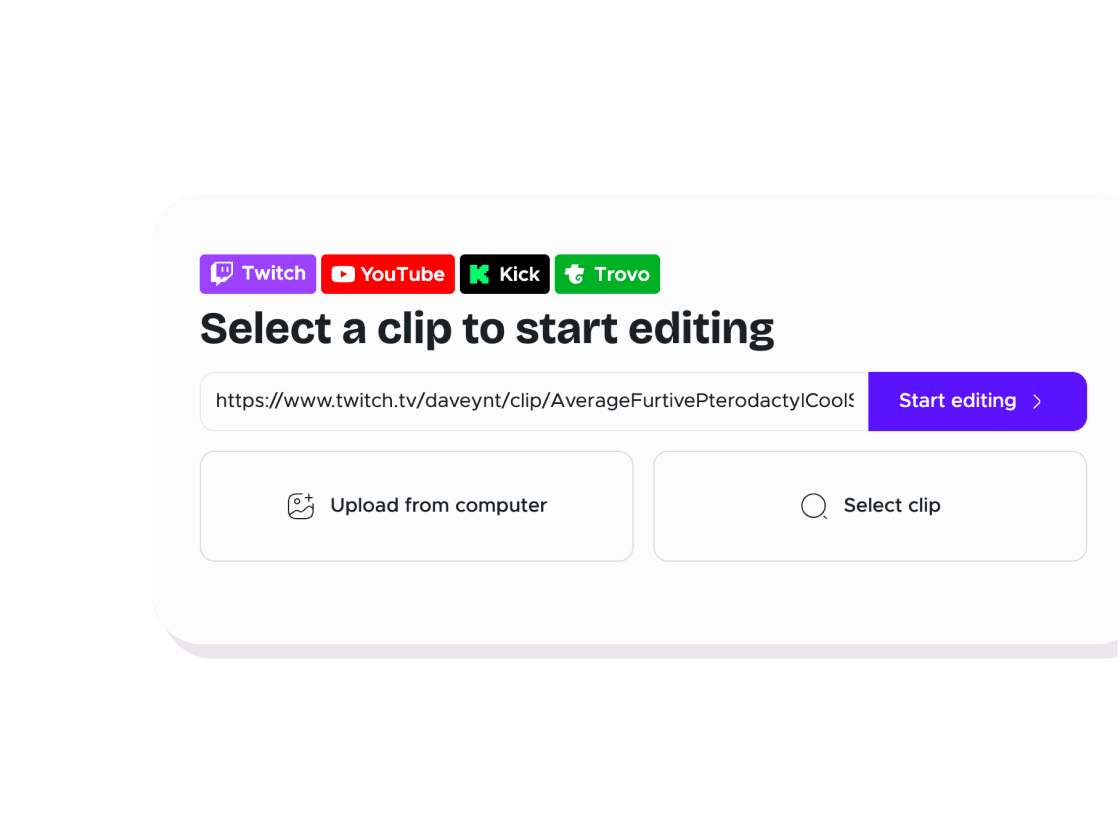
Open your clip in the editor
Import a clip by URL or upload a video file.
02

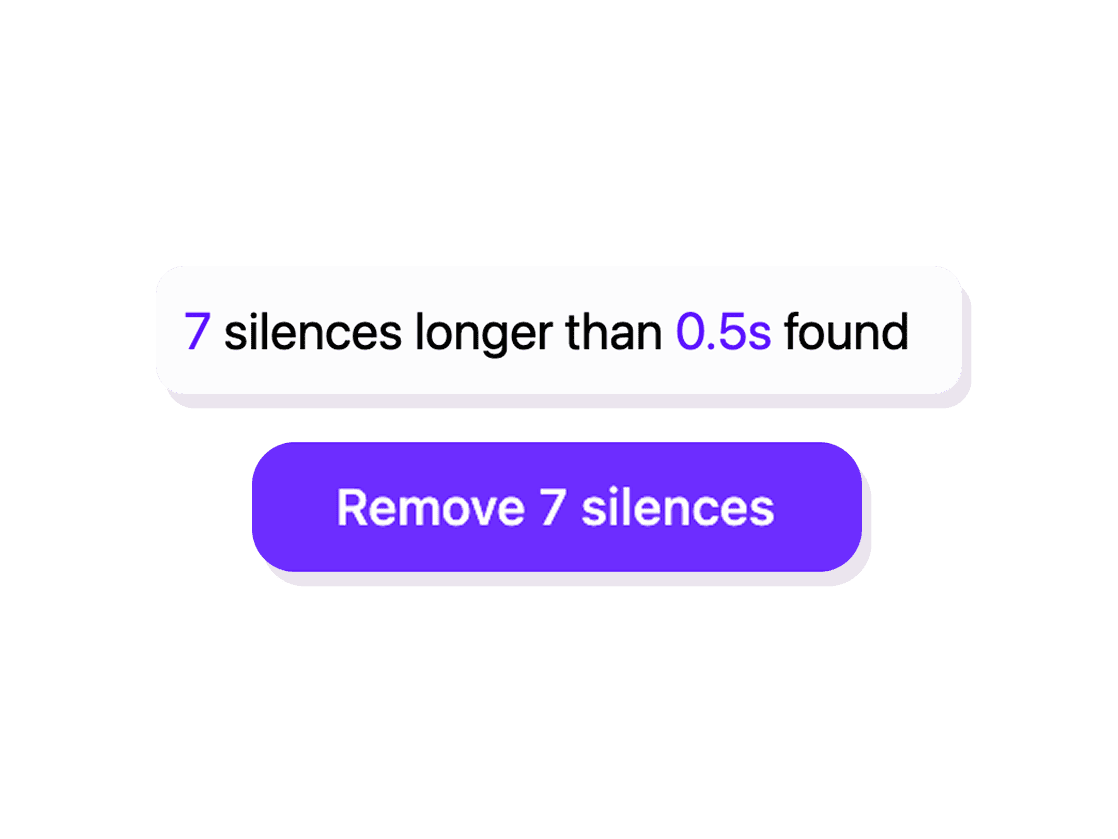
AI detects silences
The AI scans your clip and marks every silent or low-energy section. Adjust the sensitivity threshold if needed.
03

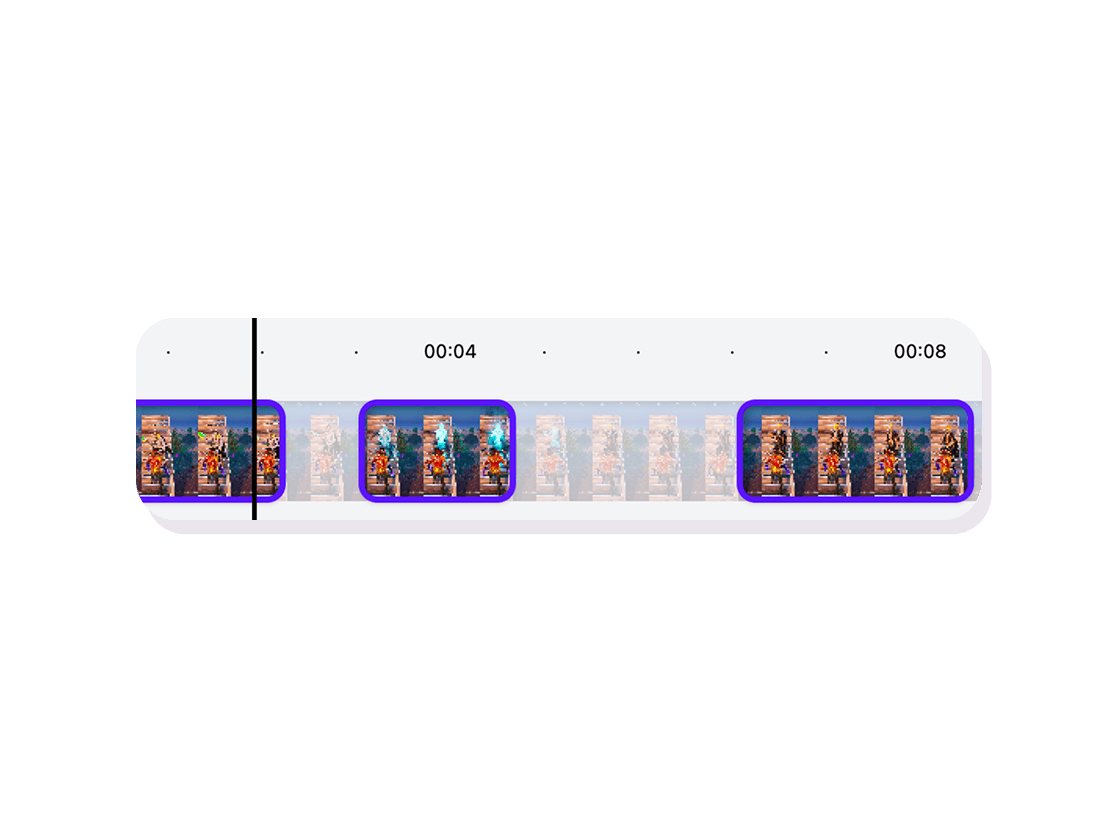
Review cuts and export
Preview the tightened clip. Restore any section the AI removed, or trim further. Export when it feels right.
Clip Editor
Keep clips tight with silence removal
AI detects silent or low-energy sections and cuts them out. Keep the action, remove the waiting. Makes clips tighter and more engaging.
AI-powered editing
The AI scans your audio and removes dead air automatically. No manual cutting - your clip is tighter in seconds.

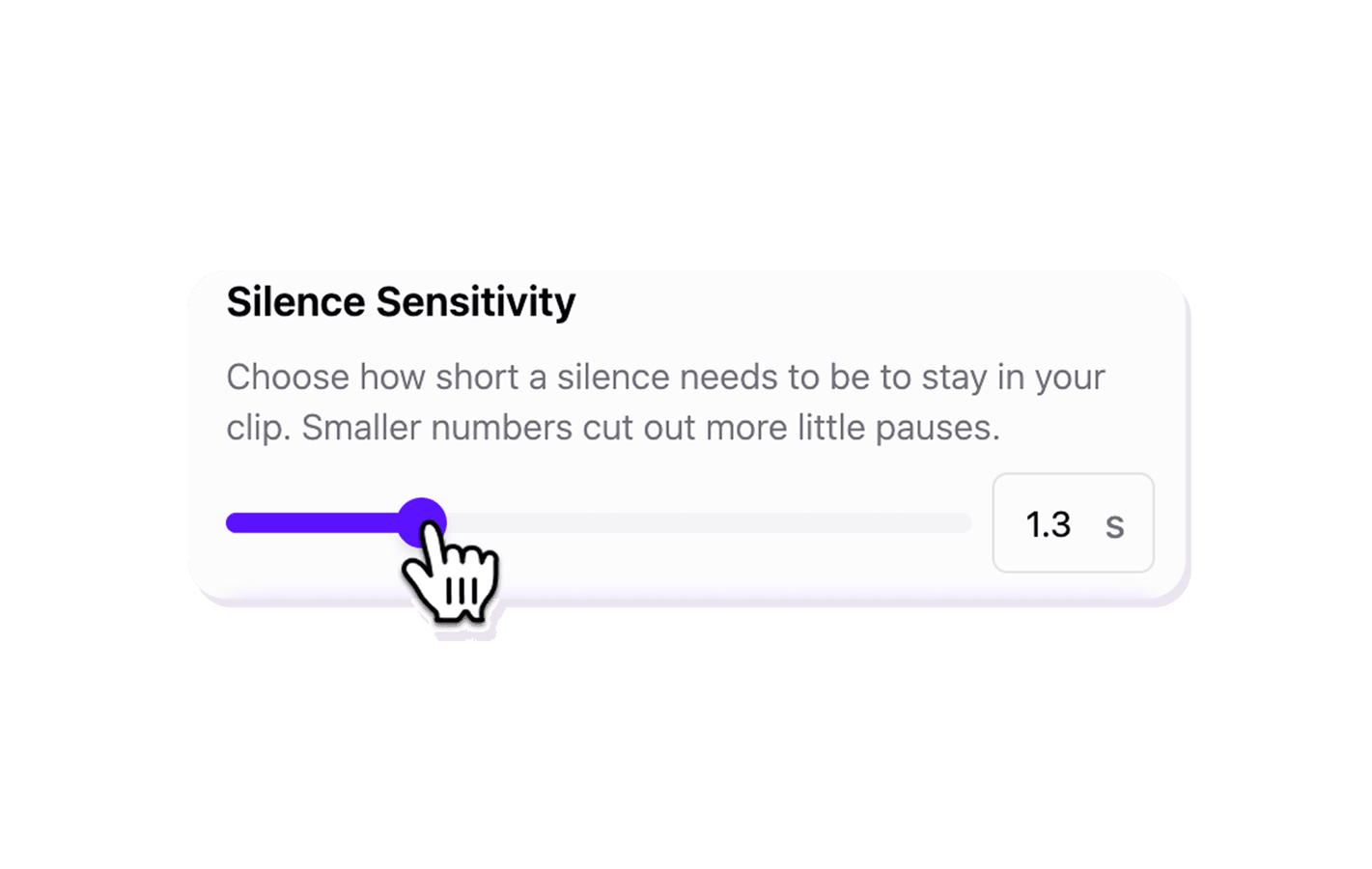
Adjustable sensitivity
Slide the threshold to control how aggressive the cuts are. Keep natural pauses or cut everything below your chosen level.
Full review control
Every cut is visible on the timeline. Restore any section the AI removed with one click before you export.
Explore Clip Editor features
11 million clips made by 1 million streamers
Real clips made by real creators using StreamLadder - totalling over a hundred million views.

AhmetZone
Kai Standing Next To Basketball Players

@SomethingAboutChickens
Something About Chickens
Original sound · SomethingAboutChickens
AhmetZone
LIL BRO

@Stormwynne
EVIL DEER - Pumpkin Panic
Original sound · Stormwynne
JKPlays
guess my IQ

@Bobby Plays
COD Points the cheap way
Original sound · Bobby Plays

TheJuiceDen
xQc Reacts to LEGO Car VS. Growing Wall

Ubietoo
Greatest goal ever scored
Original sound · Ubietoo
TheJuiceDen
Divorce any% Speedrun

@Payzren
Mistaken for a voice actor
Original sound · Payzren
AsmonEnjoyer
Girls Cosplays VS Boys Cosplays

@Shaafes_
Hilarious Extraction Fail
Original sound · Shaafes_
AhmetZone
Kai Standing Next To Basketball Players
@SomethingAboutChickens
Something About Chickens
Original sound · SomethingAboutChickens
AhmetZone
LIL BRO
@Stormwynne
EVIL DEER - Pumpkin Panic
Original sound · Stormwynne
JKPlays
guess my IQ
@Bobby Plays
COD Points the cheap way
Original sound · Bobby Plays
TheJuiceDen
xQc Reacts to LEGO Car VS. Growing Wall
Ubietoo
Greatest goal ever scored
Original sound · Ubietoo
TheJuiceDen
Divorce any% Speedrun
@Payzren
Mistaken for a voice actor
Original sound · Payzren
AsmonEnjoyer
Girls Cosplays VS Boys Cosplays
@Shaafes_
Hilarious Extraction Fail
Original sound · Shaafes_
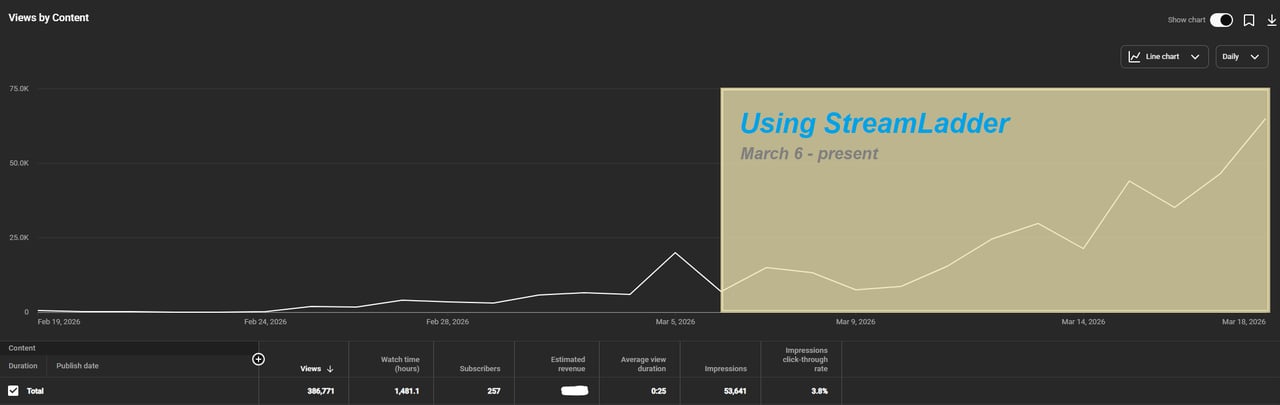
"StreamLadder's ClipGPT actually knows what clips will go viral. 48% of my sub growth from shorts was within just the last 2 weeks."

Bokaj392

SmoothestMango

Vohan

Supersonic540

NotAllergicToShrimp
that_noel

MADeightysix

Roman Gambit

Loïc Lacourt - Lo_Level31

BigTaffMan

JibbletGibbler
Richatat

Kanchi64

BigBadWolf19722
nathan_the_mad

KatsforKiowa

Da_Gipfla

killadillag_tav

Dennabeast

RealMikeTheVike

https://youtube.com/@sidechopper

BIGEXAMPL

HistoryGangster
PunkRockNova

ItsJustFreshh
Bia Bunny

Christopher Dutcher

Crunchess

daizy
Damond Rickson
RiotEmpress

Nixie

KeithLovesGaming

daizy

kevin laderriere
Rulaxalt

Metaodos

Echozday

zerofaith/kick.com

ZBMBLive

https://www.twitch.tv/bsc_rio
twitch.tv/masterjoful

youtube.com/thestizzness

tiktok.com/@captainquain
DoubleNexus

https://www.twitch.tv/itzbuddytv

https://www.twitch.tv/dice_gaminggbr
Twitch.tv/daddymacgaming50474
www.twitch.tv/ishigonite

https://www.twitch.tv/gemstonelive
Bokaj392
SmoothestMango
Vohan
Supersonic540
NotAllergicToShrimp
that_noel
MADeightysix
Roman Gambit
Loïc Lacourt - Lo_Level31
BigTaffMan
JibbletGibbler
Richatat
Kanchi64
BigBadWolf19722
nathan_the_mad
KatsforKiowa
Da_Gipfla
killadillag_tav
Dennabeast
RealMikeTheVike
https://youtube.com/@sidechopper
BIGEXAMPL
HistoryGangster
PunkRockNova
ItsJustFreshh
Bia Bunny
Christopher Dutcher
Crunchess
daizy
Damond Rickson
RiotEmpress
Nixie
KeithLovesGaming
daizy
kevin laderriere
Rulaxalt
Metaodos
Echozday
zerofaith/kick.com
ZBMBLive
https://www.twitch.tv/bsc_rio
twitch.tv/masterjoful
youtube.com/thestizzness
tiktok.com/@captainquain
DoubleNexus
https://www.twitch.tv/itzbuddytv
https://www.twitch.tv/dice_gaminggbr
Twitch.tv/daddymacgaming50474
www.twitch.tv/ishigonite
https://www.twitch.tv/gemstonelive
FAQ
Frequently asked questions
It looks for audio below a configurable threshold. The default catches dead air and long pauses but keeps breathing room between sentences.
Yes - use the threshold slider to be more or less aggressive. Lower threshold keeps more pauses, higher threshold cuts more aggressively.
Every cut is shown on the timeline. Click any removed section to restore it instantly before exporting.
If you add captions after removing silences, they sync to the edited audio. If captions were added first, they adjust automatically.