GTA 6 comes out on PS5 and Xbox Series X|S on 19 November. Somewhere in your first night there's a chase that goes wrong in the funniest way, and you'll want to keep it.
Clipping it on your PS5 takes one button. Getting that clip off your console and onto TikTok is where most people get stuck. Your phone does the whole thing.
The short answer
- Clip it. Press the Create button on your controller and pick Save Recent Gameplay.
- Get it on your phone. Open the PlayStation App, go to Library > Captures and download the clip.
- Post it. Open the clip in the StreamLadder app, crop it to vertical, add captions and post it to TikTok, Shorts, Reels and more.
Played for hours? Stream on Twitch from your PS5 and let ClipGPT find the clips in your stream.
Launch week is when everyone wants to see GTA 6, so it's the best week to post. You can try StreamLadder free for 7 days, with every feature included. Start on launch day and your trial covers the whole first week: captions, ClipGPT and scheduling to all your socials.
Before launch night: five PS5 settings to change
Do this before you play. It takes two minutes, and after that every clip you save lands on your phone on its own.
- Send clips to your phone. Turn on Auto-Upload under Settings > Captures and Broadcasts > Captures, and sign in to the PlayStation App with the same account.
- Set Video Clip Format to MP4. Go to Settings > Captures and Broadcasts > Captures > Video Clip Format and set File Type to MP4. Your PS5 saves clips as WebM by default, which a lot of apps won't open.
- Record in 1080p, not 4K. In the same Video Clip Format menu, pick 1080p. 4K clips don't go to the PlayStation App.
- Keep your voice in the clip. Press the Create button, open Capture Options and include your mic audio.
- Keep uploading in rest mode. Turn on Stay Connected to the Internet in your rest mode settings. Without it, clips stop uploading when you put your PS5 to sleep.
How to stream on Twitch from your PS5
To stream on Twitch from your PS5, press the Create button and pick Broadcast. Start before you play, even if nobody is watching: Twitch saves the whole session, and ClipGPT finds the clips in it afterwards.
- Turn on Store Past Broadcasts. It's in your Stream Settings, in the Creator Dashboard on the web. Without it, Twitch doesn't save your stream.
- Press the Create button and pick Broadcast. Choose Twitch. The first time, your PS5 asks you to link your Twitch account.
- Pick Go Live. Twitch keeps the stream for 7 days, 14 for Affiliates, and 60 for Partners, Turbo and Prime.
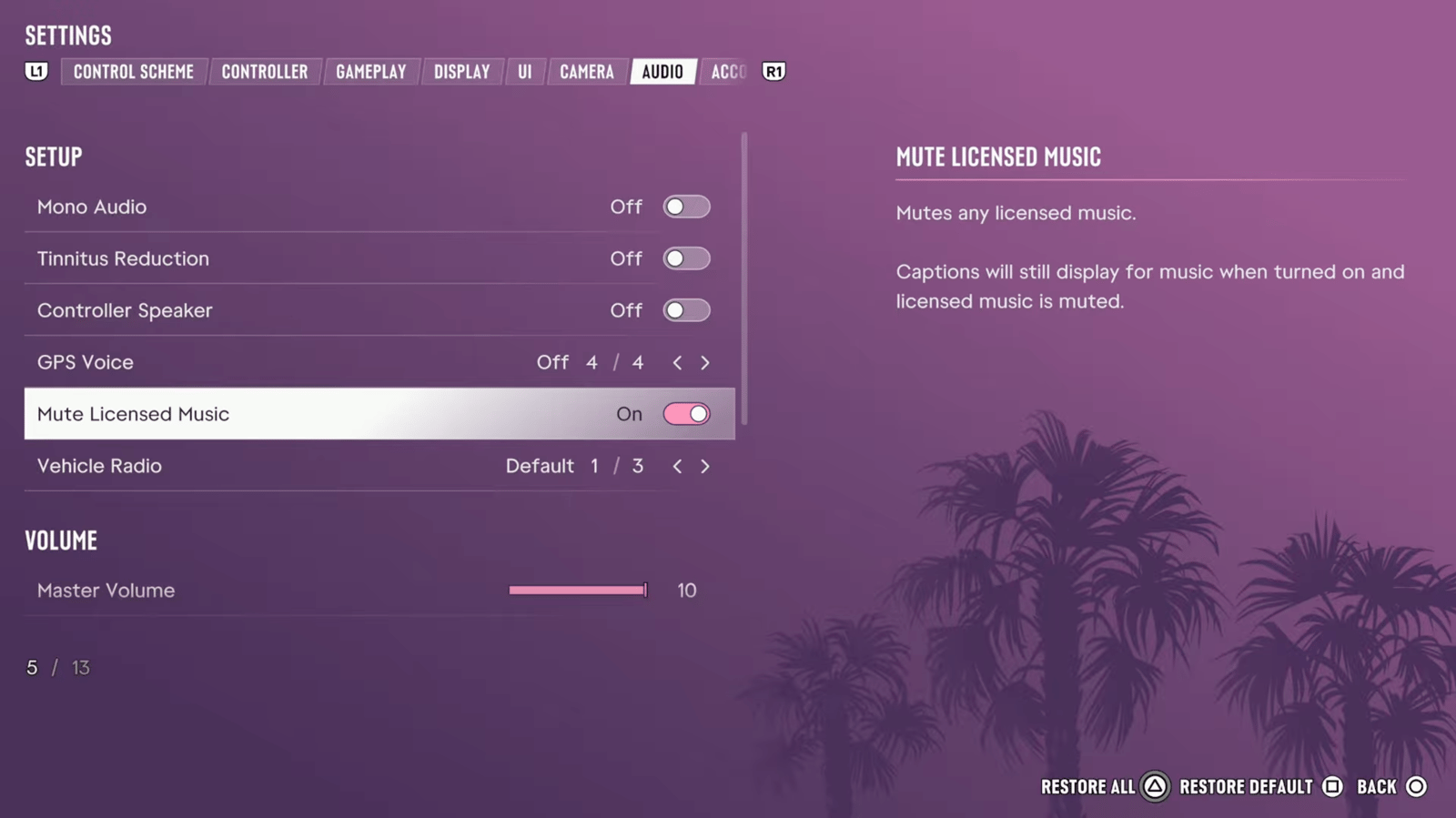
You can mute licensed music in GTA 6, radio stations included! Rockstar Games thought of everything. Turn on Mute Licensed Music under Settings > Audio before you go live. The game's original score keeps playing.
It just happened: how to clip on PS5 with the Create button
To clip on PS5, press the Create button on your controller, the small button to the left of the touchpad. You get two ways to record:
- Save Recent Gameplay saves what just happened, from the last 15 seconds up to 1 hour. Your PS5 records in the background, so you don't have to start anything first.
- Start New Recording is for something you see coming, like a mission. It runs up to 1 hour.
Keep clips to 3 minutes or less. Longer ones stay on your console and don't go to your phone.
Clip your own play. Rockstar's policy on posting its material says it removes isolated cutscenes and story spoilers. PlayStation also says some scenes are blocked and won't show up in your clips.
Still on the couch: how to transfer video clips from PS5 to your phone
The clip is saved. To transfer it from your PS5 to your phone, open the PlayStation App:
- Open the PlayStation App. Go to Library > Captures. Your clip shows up there a few minutes after you saved it.
- Download the clip. Open it and pick Download. It's now in your phone's photos.
- Open it in the StreamLadder app. Go to the Clip Editor and upload the clip from your phone. Trim it to the moment, crop it to vertical and add captions.
- Post it. Post or schedule it to TikTok, YouTube, Instagram and Facebook, and X on Pro.


You can be back in the game a few minutes later, with the clip already posted.
PS5 clips not uploading to the PlayStation App?
If your clip doesn't show up in the app, it's almost always one of these:
- It's longer than 3 minutes or it's 4K. Those clips aren't uploaded. Trim it on your PS5: open it in Media Gallery, pick Edit, then Set Trim.
- Auto-Upload was off when you saved it. Highlight the clip in Media Gallery, press the Options button and pick Upload to PlayStation App.
The PlayStation App keeps your clips for 14 days. You don't need PlayStation Plus for any of this.
Before you go to bed: turn the stream into clips with ClipGPT
ClipGPT takes your whole Twitch stream and gives you back clips that are ready to post. It looks for the moments people stop scrolling for: a funny reaction, a plan that falls apart, chat losing it. You don't scrub through five hours of footage, and you don't edit anything unless you want to.
When you're done playing, pick up your phone again:
- Copy the link to your past broadcast on Twitch.
- Paste it into ClipGPT in the StreamLadder app, or on our website.
- Get up to 30 clips back, already edited. They're cropped to vertical, with your facecam framed, captions, hashtags and a hook title.
- Post or schedule them. Send them to TikTok, YouTube, Instagram and Facebook, and to X on Pro.
A few things that help in launch week:
- Say "clip that" while you're live. ClipGPT turns that moment into a clip too when it processes your stream.
- Ask for what you want. With Find clips you type something like "the funniest moments" and get those back as edited clips.
- Clip every stream. ClipGPT has no limit on Creator and Pro, within fair use. It's part of the 7-day free trial on both, so you can run every stream of launch week through it.
Would rather not go live? Record up to an hour with Start New Recording, copy the file to a USB drive from Media Gallery and upload it to ClipGPT on a computer.
The next morning: which clips to post
ClipGPT gives you up to 30 clips from one stream, which is more than you can post in a day. Don't post them all at once:
- Start with the highest score. Every ClipGPT clip gets a virality score from 0 to 100, which tells you how likely it is to get views. Post the top one first.
- Tweak it if you want to. Open a clip in the editor to change the captions or the layout, or post it as it is.
- Schedule the rest across the week. Queue them in the Content Publisher and let StreamLadder pick your best posting times.
How we checked
We checked the steps against PlayStation's guides to capturing gameplay, PS5 captures in the PlayStation App and editing and sharing clips, and Twitch's help on past broadcasts, on 17 November 2026. PlayStation's guides don't name the default clip format, so the WebM default comes from PS5 setup guides. The ClipGPT and StreamLadder app details come from our own app. We'll update this guide after launch if anything works differently in GTA 6.