Auto crop your clips from horizontal to vertical
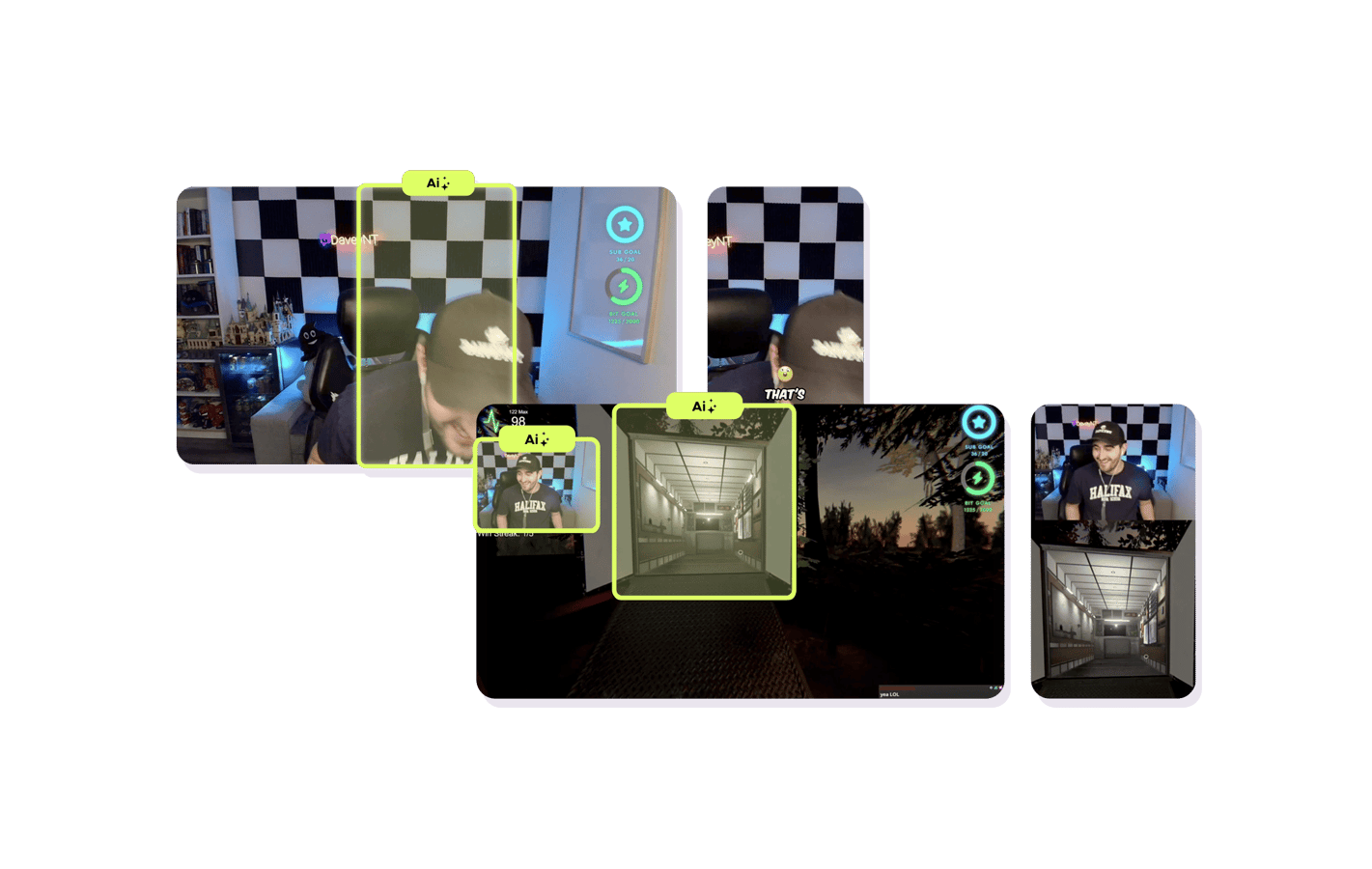
ClipGPT automatically crops your 16:9 stream footage to 9:16 vertical format. It detects your facecam and gameplay to keep the important parts visible.
Auto Crop to Vertical
Horizontal footage doesn't grow your socials - vertical does
Stream footage is recorded in 16:9 horizontal, but TikTok, Reels, and Shorts require 9:16 vertical to fit the mobile screens where most viewers discover new content. That gap is where many streamers lose momentum: manually cropping every clip and repositioning facecams is a slow process. Auto crop handles this transition instantly, converting your horizontal stream into vertical video perfectly sized for all social platforms.
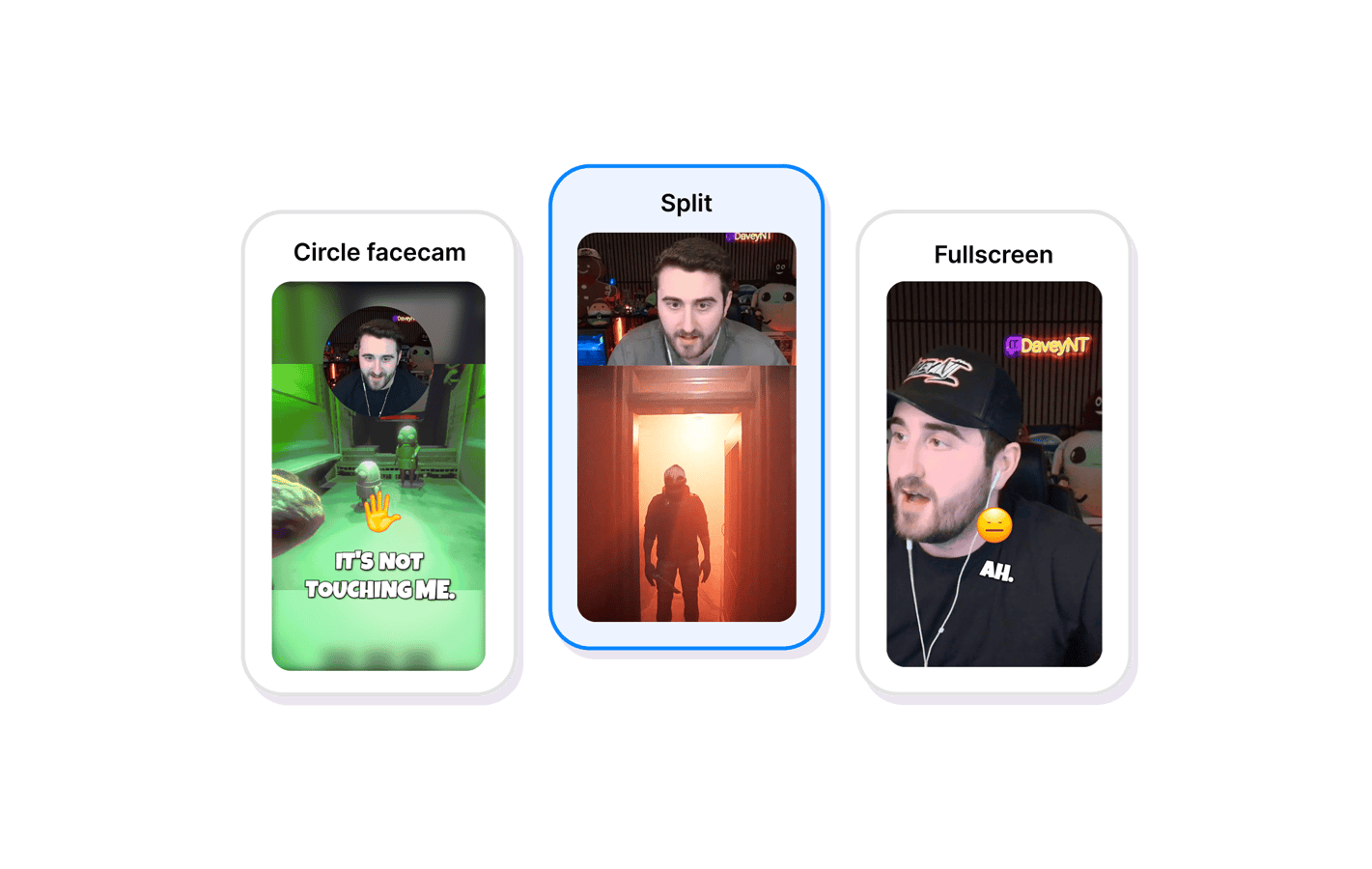
ClipGPT's AI detects where your facecam and gameplay sit in the frame, then builds a vertical layout that keeps both visible automatically. Choose from multiple presets like facecam on top with gameplay below, side-by-side, or full-screen gameplay in the Clip Editor. Every clip is exported at 1080p 60fps to ensure it looks professional and smooth on every device.
Since the majority of social media consumption happens on mobile phones, we ensure every clip is cropped correctly for the specific UI of each platform at the highest possible quality. Auto crop pairs naturally with the rest of the workflow: AI clipping finds your best moments, facecam detection locks your face in frame, and auto crop handles the conversion. You can always fine-tune the results in the Clip Editor if you want.
Export your highlights at 1080p 60fps and publish directly to TikTok, Reels, and Shorts. Add animated captions to maximize engagement before you go. The whole point is that you never have to touch a manual crop tool again: the AI knows exactly where the action is.
Auto Crop to Vertical
How Auto Crop to Vertical works
From horizontal footage to a vertical clip ready to post.
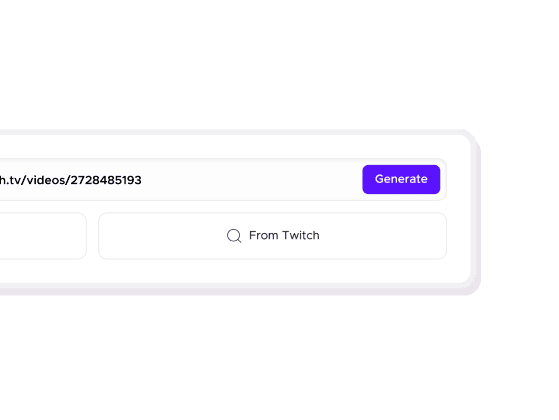
01

Import your clip
Upload a clip or select one from your ClipGPT highlights.
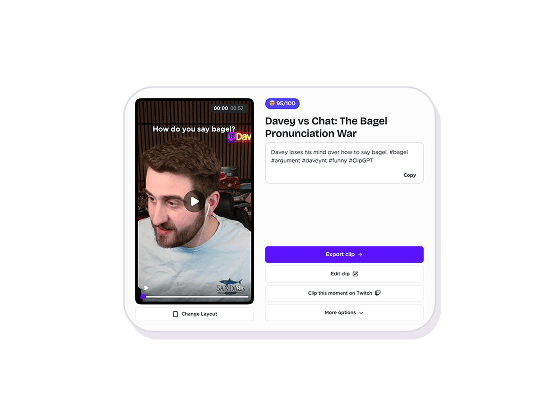
02
AI crops automatically
ClipGPT detects your facecam position and gameplay area, then crops to 9:16 keeping both visible.
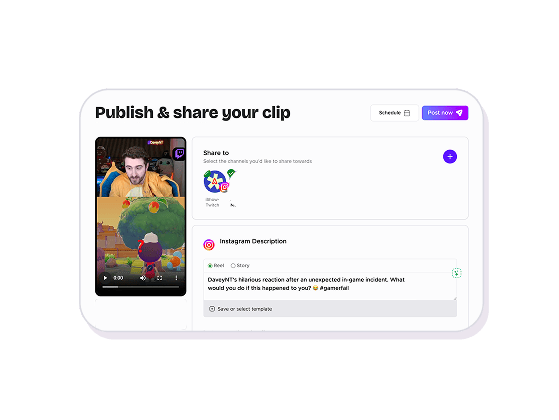
03
Export vertical
Download your vertical clip or publish directly to TikTok, Reels, or Shorts.
ClipGPT
Convert clips to vertical video automatically
ClipGPT automatically crops your 16:9 stream footage to 9:16 vertical format - keeping your facecam and gameplay visible.
Instant vertical format
Go from horizontal stream footage to vertical short-form in one click. No manual cropping needed.
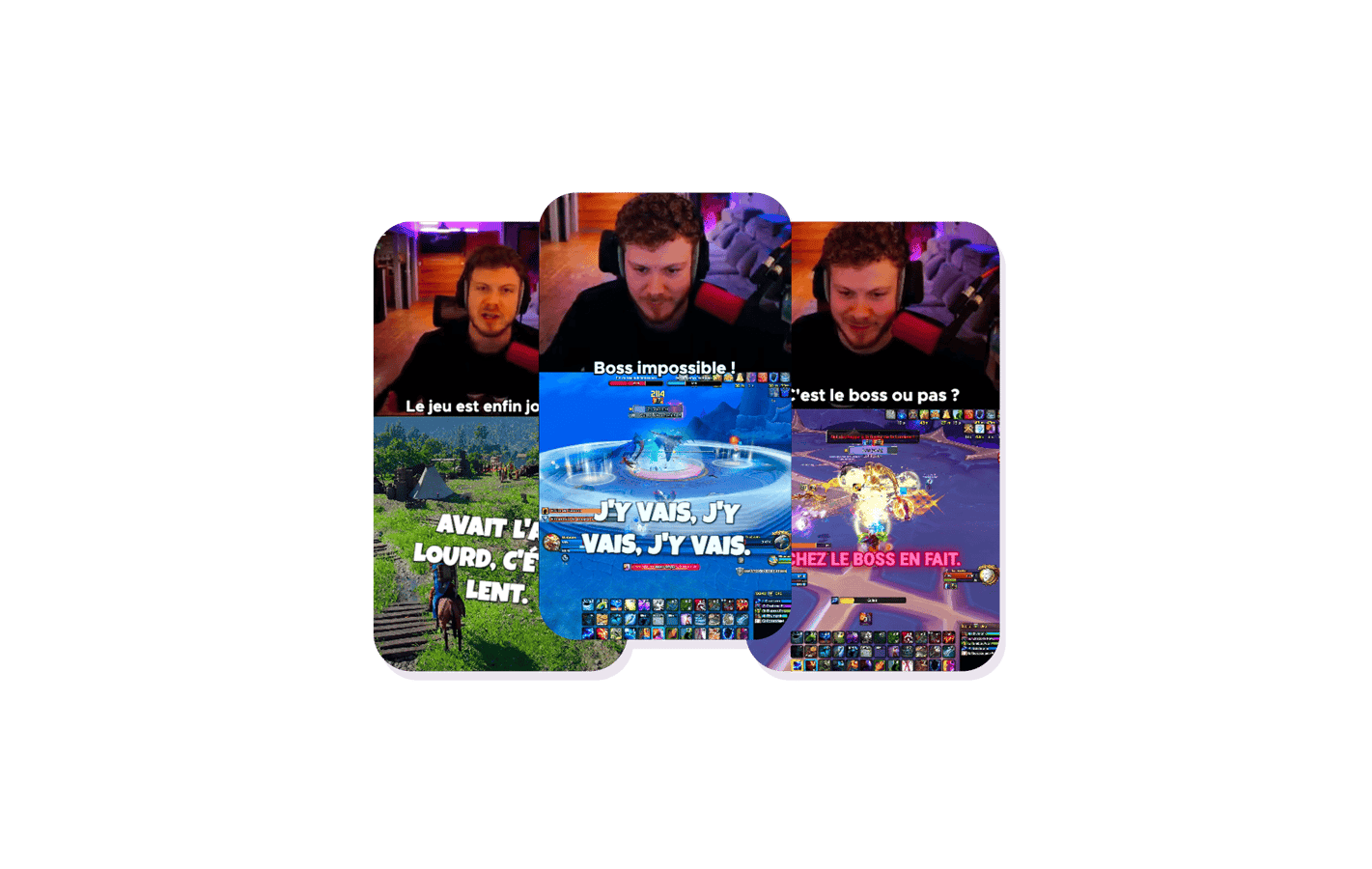
Facecam and gameplay in frame
The AI detects your facecam and gameplay area, so both stay visible in the vertical layout.
Multiple layout presets
Choose facecam-on-top, side-by-side, or full-screen gameplay. Switch presets without re-importing.
Explore ClipGPT features
11 million clips made by 1 million streamers
Real clips made by real creators using StreamLadder - totalling over a hundred million views.
AhmetZone
Kai Standing Next To Basketball Players

@SomethingAboutChickens
Something About Chickens
Original sound · SomethingAboutChickens
AhmetZone
LIL BRO

@Stormwynne
EVIL DEER - Pumpkin Panic
Original sound · Stormwynne
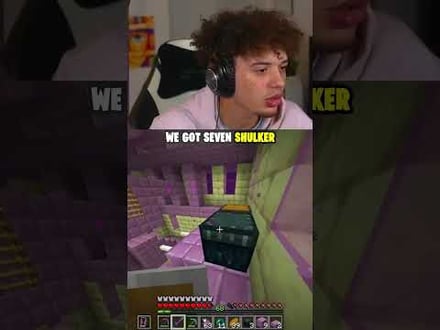
JKPlays
guess my IQ

@Bobby Plays
COD Points the cheap way
Original sound · Bobby Plays
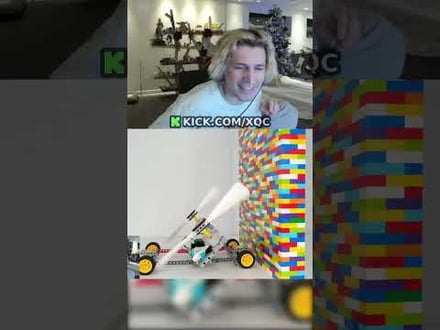
TheJuiceDen
xQc Reacts to LEGO Car VS. Growing Wall

Ubietoo
Greatest goal ever scored
Original sound · Ubietoo
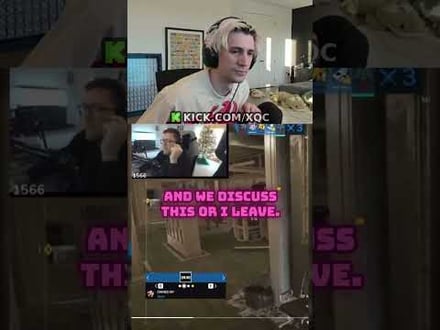
TheJuiceDen
Divorce any% Speedrun

@Payzren
Mistaken for a voice actor
Original sound · Payzren
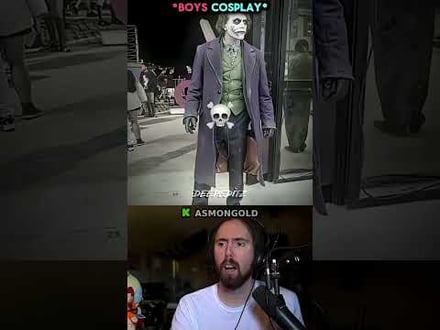
AsmonEnjoyer
Girls Cosplays VS Boys Cosplays

@Shaafes_
Hilarious Extraction Fail
Original sound · Shaafes_
AhmetZone
Kai Standing Next To Basketball Players
@SomethingAboutChickens
Something About Chickens
Original sound · SomethingAboutChickens
AhmetZone
LIL BRO
@Stormwynne
EVIL DEER - Pumpkin Panic
Original sound · Stormwynne
JKPlays
guess my IQ
@Bobby Plays
COD Points the cheap way
Original sound · Bobby Plays
TheJuiceDen
xQc Reacts to LEGO Car VS. Growing Wall
Ubietoo
Greatest goal ever scored
Original sound · Ubietoo
TheJuiceDen
Divorce any% Speedrun
@Payzren
Mistaken for a voice actor
Original sound · Payzren
AsmonEnjoyer
Girls Cosplays VS Boys Cosplays
@Shaafes_
Hilarious Extraction Fail
Original sound · Shaafes_
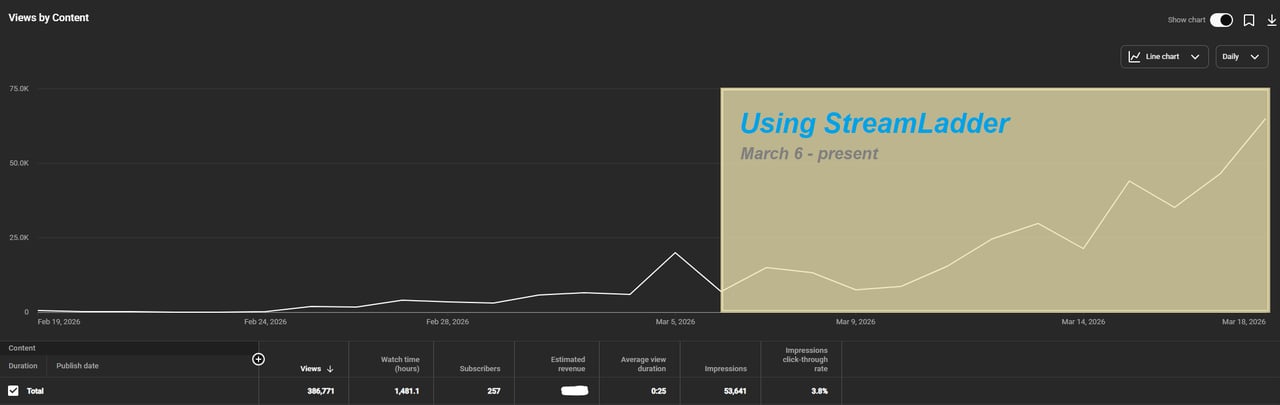
"StreamLadder's ClipGPT actually knows what clips will go viral. 48% of my sub growth from shorts was within just the last 2 weeks."

Bokaj392

SmoothestMango
Vohan

Supersonic540
NotAllergicToShrimp
that_noel
MADeightysix
Roman Gambit

Loïc Lacourt - Lo_Level31
BigTaffMan

JibbletGibbler
Richatat

Kanchi64

BigBadWolf19722
nathan_the_mad
KatsforKiowa
Da_Gipfla

killadillag_tav

Dennabeast

RealMikeTheVike
https://youtube.com/@sidechopper
BIGEXAMPL

HistoryGangster
PunkRockNova
ItsJustFreshh
Bia Bunny

Christopher Dutcher
Crunchess
daizy
Damond Rickson
RiotEmpress
Nixie

KeithLovesGaming
daizy
kevin laderriere
Rulaxalt

Metaodos

Echozday
zerofaith/kick.com

ZBMBLive

https://www.twitch.tv/bsc_rio
twitch.tv/masterjoful

youtube.com/thestizzness

tiktok.com/@captainquain
DoubleNexus
https://www.twitch.tv/itzbuddytv
https://www.twitch.tv/dice_gaminggbr
Twitch.tv/daddymacgaming50474
www.twitch.tv/ishigonite

https://www.twitch.tv/gemstonelive
Bokaj392
SmoothestMango
Vohan
Supersonic540
NotAllergicToShrimp
that_noel
MADeightysix
Roman Gambit
Loïc Lacourt - Lo_Level31
BigTaffMan
JibbletGibbler
Richatat
Kanchi64
BigBadWolf19722
nathan_the_mad
KatsforKiowa
Da_Gipfla
killadillag_tav
Dennabeast
RealMikeTheVike
https://youtube.com/@sidechopper
BIGEXAMPL
HistoryGangster
PunkRockNova
ItsJustFreshh
Bia Bunny
Christopher Dutcher
Crunchess
daizy
Damond Rickson
RiotEmpress
Nixie
KeithLovesGaming
daizy
kevin laderriere
Rulaxalt
Metaodos
Echozday
zerofaith/kick.com
ZBMBLive
https://www.twitch.tv/bsc_rio
twitch.tv/masterjoful
youtube.com/thestizzness
tiktok.com/@captainquain
DoubleNexus
https://www.twitch.tv/itzbuddytv
https://www.twitch.tv/dice_gaminggbr
Twitch.tv/daddymacgaming50474
www.twitch.tv/ishigonite
https://www.twitch.tv/gemstonelive
FAQ
Frequently asked questions
The AI identifies your facecam and the main gameplay area, then creates a vertical layout that shows both. You can adjust the crop if needed.
Auto crop still works - it focuses on the gameplay area and centers it in the vertical frame.
Yes - after the auto crop, you can switch between layout presets or manually adjust the crop position.
1080x1920 at 60fps. ClipGPT is included in the Creator plan.