If you clip on Twitch, the hard part is keeping up with PC creators, their consistency and their quality. You grab a clip on your phone mid-stream, then wait until you're back at your desk to download it, crop it vertically, add captions, and post. By the time it's live, the moment has gone cold.
Now that whole process fits in your pocket. The StreamLadder mobile app is live on iOS and Android, and it turns your Twitch and Kick clips into TikToks, Reels, and Shorts without ever opening a laptop. Import the clip, auto-convert it to vertical, automatically add captions, and post, all from one app.
Mobile game content is exploding, and the creators who win are the ones who post fast and post consistently. This is how you keep up, from wherever you are.
How to make clips on Twitch mobile
First, the basics. Creating a clip in the Twitch mobile app is simple:
- Open the stream (or your own past broadcast) in the Twitch app.
- Tap the video to bring up the controls.
- Tap the clip icon (the film clapperboard).
- Trim the moment you want and tap Publish.
That gets you a clip on Twitch (here's our complete guide on making Twitch clips if you want the full rundown). The problem is what comes next: a raw horizontal clip sitting in your clip library isn't a TikTok. It's not vertical, it has no captions, and Twitch's own sharing options are limited. That's the part the StreamLadder app now handles from your pocket.
What the StreamLadder mobile app does
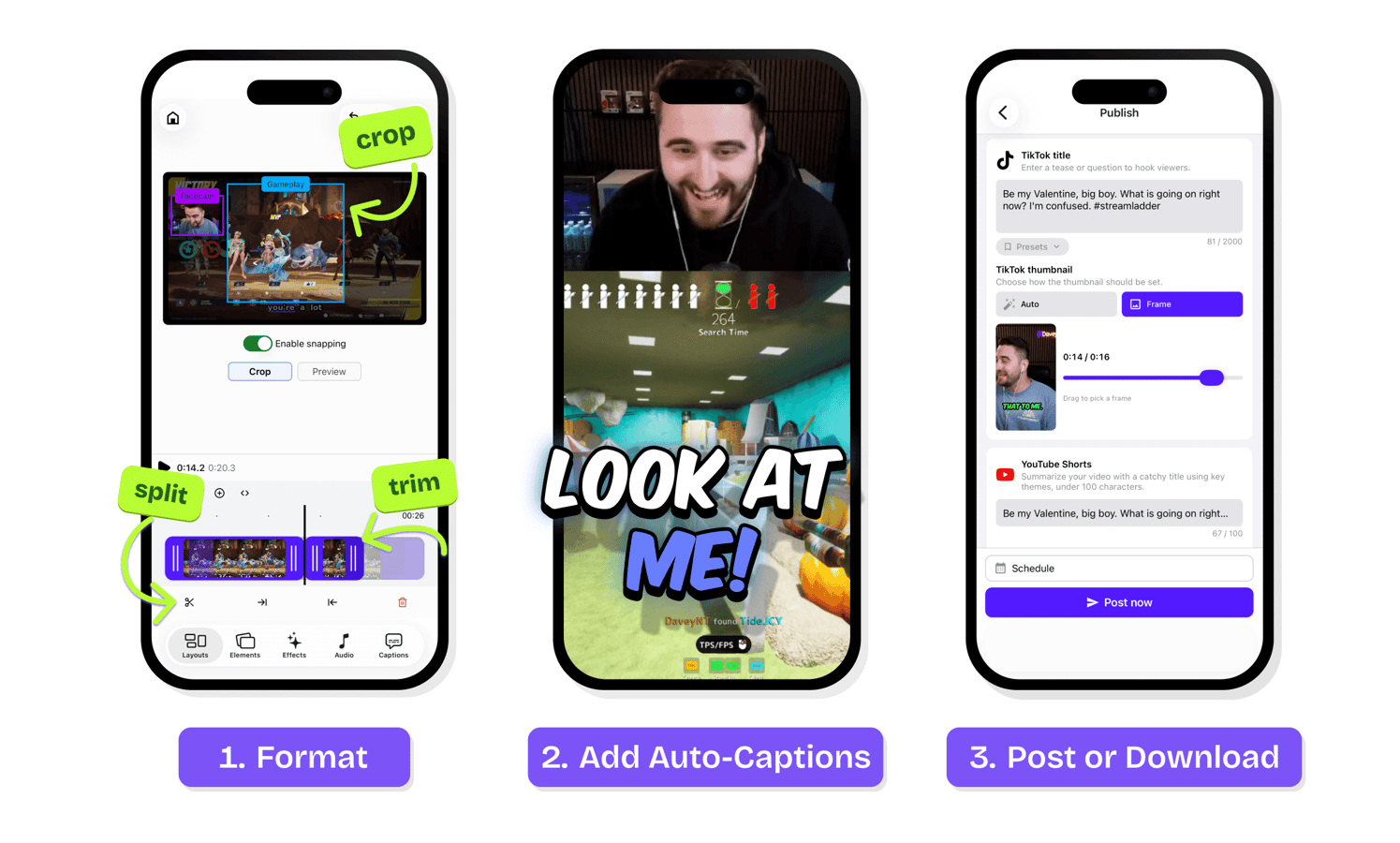
Turn Twitch and Kick clips into vertical videos
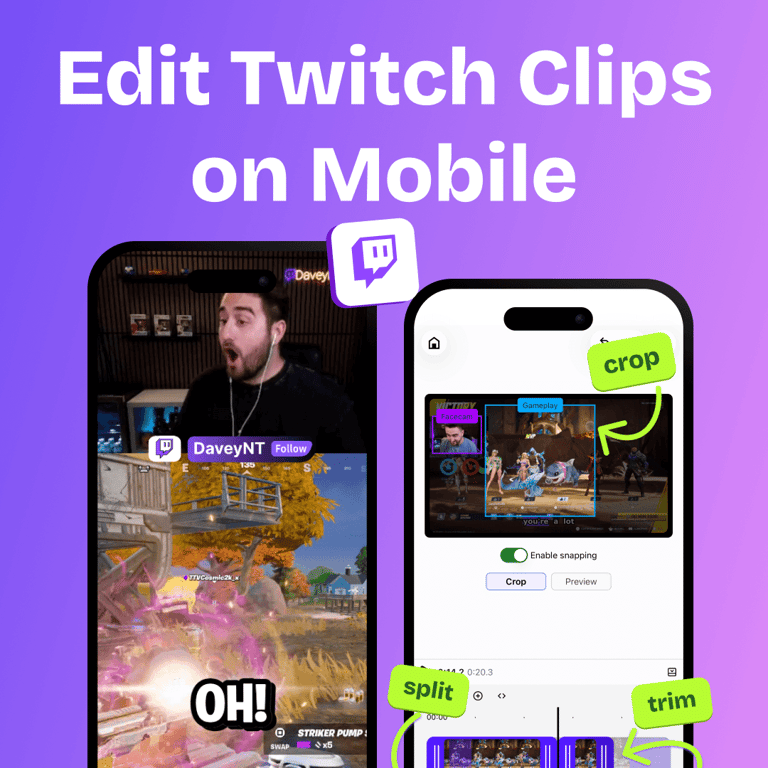
Paste a clip link or browse your recent clips right inside the app, and convert it to vertical in seconds. Choose a layout that frames your facecam and gameplay the way you want for TikTok, Reels, and Shorts. Kick clips work equally as well.
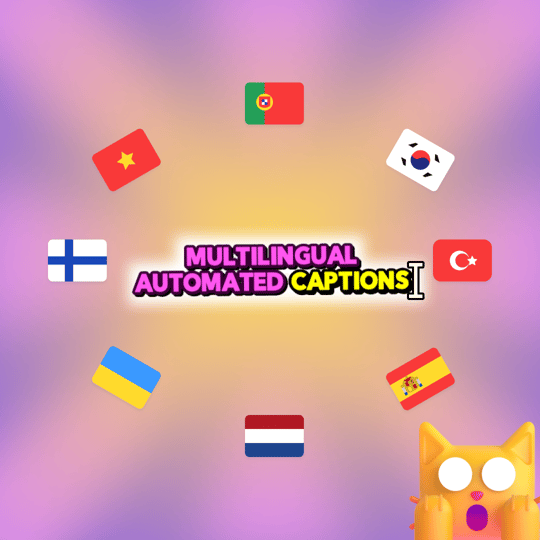
Automatically add captions in any language
The app includes StreamLadder's newly released V2 Captions. One tap transcribes your clip (in any language you stream in) and applies animated, social media-ready caption styles. Since most short-form viewers watch with sound off, this alone can be the difference between a swipe past and full engagement.
Download clips to your phone
Need the file itself? The app works as a Twitch clip downloader on mobile too: save your finished vertical clip straight to your camera roll, ready to upload natively or share anywhere.
Post directly to your socials
Skip the download-then-upload process entirely. Publish your finished clip from the app to your connected accounts or schedule multiple videos in advance with ease.
Let ClipGPT find your best moments
Don't want to hunt through a three-hour VOD for the highlight? ClipGPT, StreamLadder's AI clip generator, finds the best moments from your streams and turns them into captioned vertical clips automatically. On mobile, that means you can end your stream, put your setup to sleep, and review ready-made clips on the go, whenever and wherever you are.
Why clipping from your phone matters
Speed is an algorithm advantage. Clips involving recent, viral moments perform best in the first hours. If your workflow requires a desktop session, you're often posting after the wave has passed. A mobile workflow means you post while the moment is still hot.
Consistency gets easier. The algorithm rewards consistency, and consistency is easier when you can post from anywhere. Keeping up with the competition can be tiring and time-consuming. Being able to do this on your phone makes things comfortable and effortless.
Your whole pipeline in one place. Clip, edit, and post in StreamLadder mobile to TikTok, YouTube Shorts, and Instagram. No file transfers, no waiting times, no procrastination.
Twitch clips to TikTok from your phone: StreamLadder efficiency
- Clip the moment in the Twitch app (or let ClipGPT find it for you).
- Open StreamLadder and select the clip or paste its link.
- Pick a vertical layout. Facecam on top, gameplay below, or any arrangement you like.
- Generate AI captions and choose a style and animation that fits your brand.
- Post or download. Publish straight to TikTok, Reels, or Shorts, or save to your camera roll.
Mobile app vs. desktop: what's the difference?
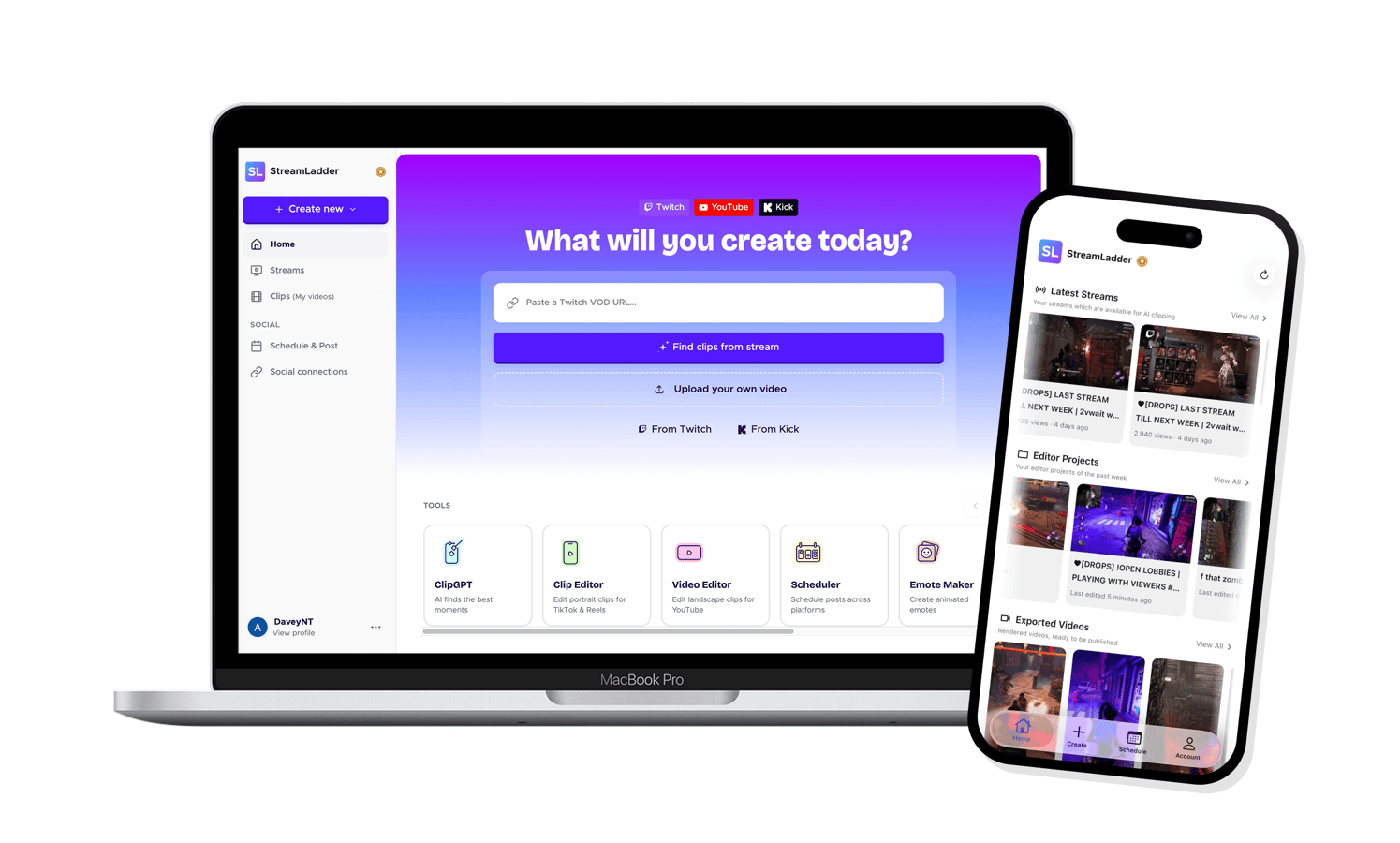
One is big, one is small. Everything is there. The mobile app supports the full StreamLadder workflow: clip import from Twitch and Kick, vertical layouts, AI captions with styling and animations, ClipGPT, downloads, and direct posting. Desktop remains great for longer editing sessions on a big screen; the mobile app is built for speed and posting in the moment. Your account, clips, and templates sync across both so you can switch between them at ease.
Frequently asked questions
Is the StreamLadder app available on both iPhone and Android?
Yes. The app is live now on the App Store (iOS) and Google Play (Android).
Can I download Twitch clips on mobile with it?
Yes. Edit your clip and save the finished vertical video directly to your camera roll. No separate downloader site needed.
Does it work with Kick clips too?
Yes. Kick clips can be imported, converted, captioned, and posted just like Twitch clips.
Can I add captions to clips on my phone?
Yes. AI captions work fully on mobile, with the same styles, animations, and any-language recognition as desktop.
Does the app cost anything?
You can start for free, the same as StreamLadder on desktop. Your existing subscription carries over, it's one account across all your devices.
Can I clip a stream directly inside the StreamLadder app?
You create the clip on Twitch or Kick as usual and then StreamLadder takes over everything after that: editing, captions, and posting.
Do it all, on-the-go
Don't be dependent on your desktop. With the StreamLadder mobile app, the whole pipeline: clip, vertical, captions, and post fits in your pocket, on iOS and Android, starting today.