Captions play a deciding factor in levels of engagement of your clips. The attention-capturing effects of a clip lands flat when there's no on-screen text to carry it. The fix is simple: add captions to your Twitch clips before you post them to TikTok, Shorts, or Reels.
StreamLadder can do this automatically. With our brand-new V2 Captions, AI transcribes your clip and drops in animated, styled captions in seconds in any language you stream in, with word grouping that follows your speech. Here's why it matters and exactly how to do it.
Why are captions relevant for streamers?
The average attention span of your audience is typically very short, ranging from 1.7 to 6 seconds long. When you post a Twitch clip to TikTok or YouTube Shorts, you're competing in a feed where the average viewer decides in under two seconds whether to keep watching.
A seasoned content creator is one who uses all elements at their disposal to make a video as captivating as possible in those critical seconds. A common factor that separates well-performing content is those that involve captions that add flair to the post and highlight the impact of the compelling moments.
There are three streamer-related advantages for captions:
- Muted viewing. A large share of short-form video is watched without sound - on commutes, in class, in bed. Captions make sure your best moments still hit even in silence.
- Retention. Animated captions give viewers something to track word-by-word. That extra bit of engagement keeps people on your clip longer, and watch time is exactly what the TikTok and Shorts algorithms reward.
- Accessibility and reach. Captions make your clips watchable for deaf and hard-of-hearing viewers, and readable for people who don't catch every word of spoken audio. This allows your content to reach viewers whose primary language is not the same as yours.
Captioning clips by hand vs. AI auto-captions
If you've ever subtitled a clip manually in a video editor, you know the pain: type each line, drag it onto the timeline, adjust the timing, preview, adjust again. For a 30-second clip that's easily 15-20 minutes. Multiply that by the three to five clips you should be posting per week, and captions become part of the reason clips don't get posted and block your progress.
AI auto-captions collapse that to seconds. And because StreamLadder is a Twitch clip editor built to turn Twitch clips into TikToks from the ground up, your captions are already sized, styled, and positioned for vertical video.
How to add captions to a Twitch clip (step by step)
Here's the full workflow, from raw clip to caption-ready TikTok.
- Grab your clip. Copy the URL of any Twitch or Kick clip, or upload a clip or VOD segment directly. Don't have one yet? Here's how to clip your stream first.
- Drop it into StreamLadder. Paste the link into the editor. Your clip loads on a vertical (9:16) canvas built for TikTok, Shorts, and Reels.
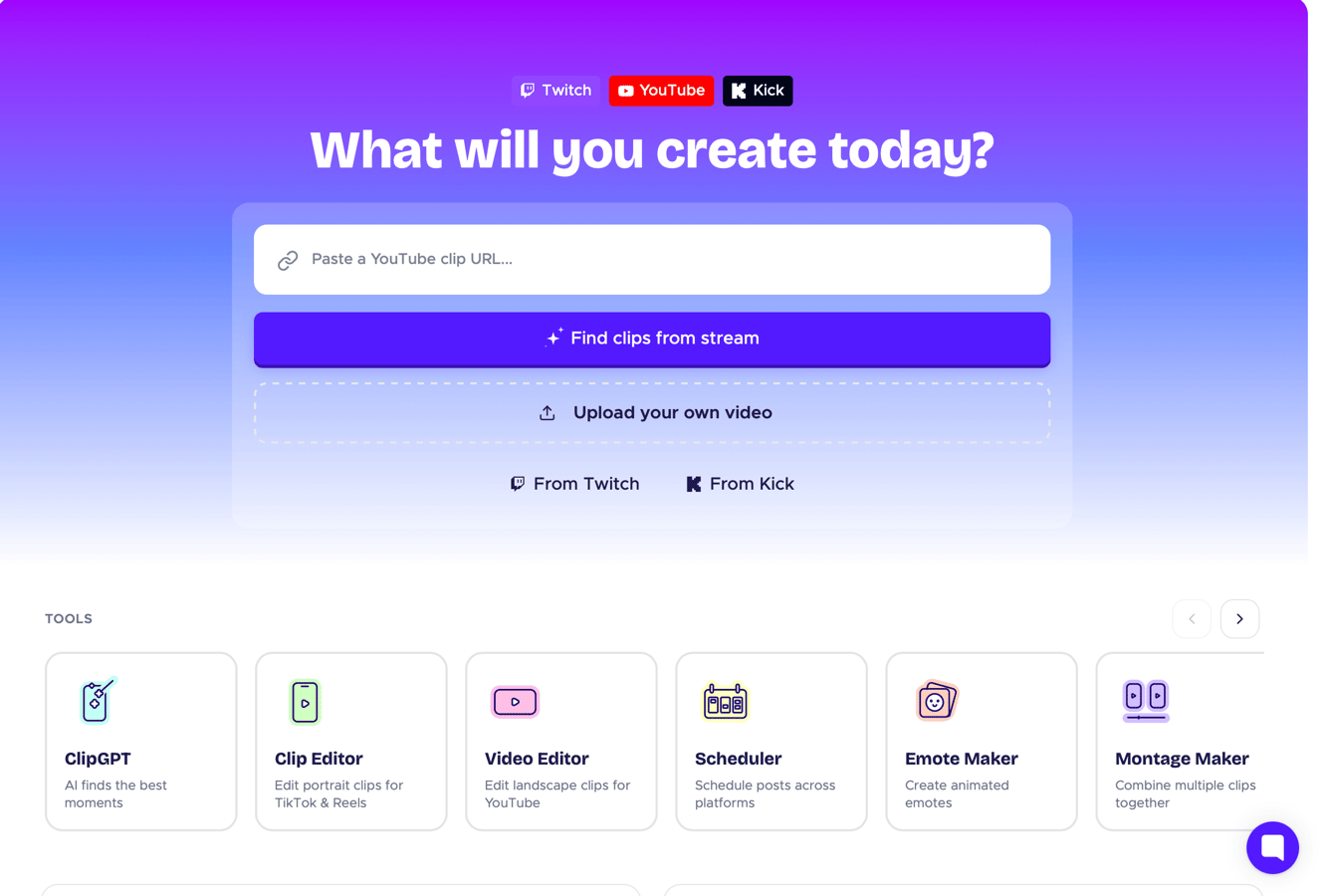
- Auto-generate your captions. Turn on captions and StreamLadder transcribes the audio and places synced captions across the clip and it's ready to go!
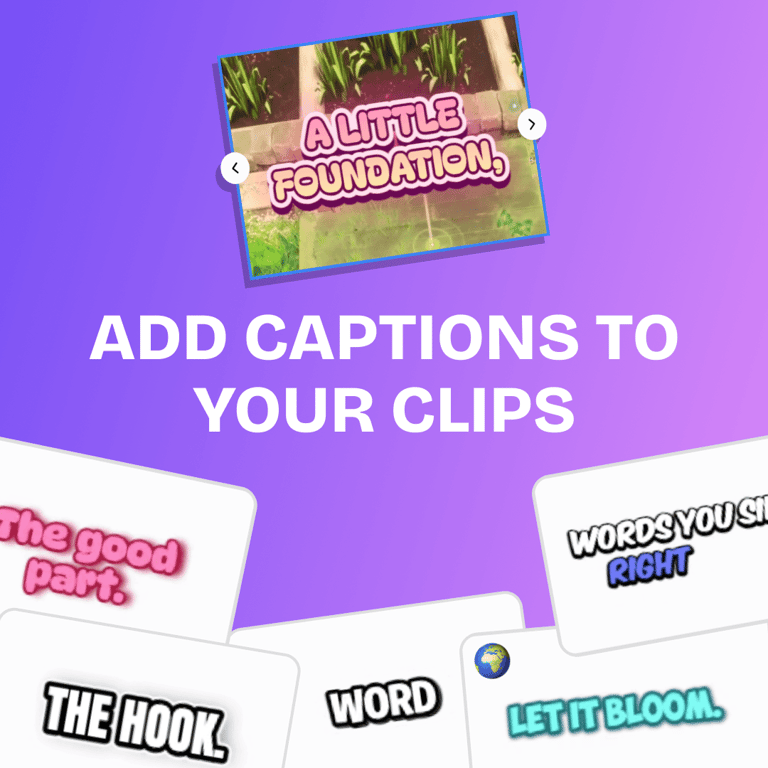
- Pick a caption style (optional). Choose an animated preset like word-by-word highlights, bold "karaoke" styling, colors, and fonts that match short-form trends. This is what makes a clip look native to the platform instead of like a screen recording.
- Do a quick edit pass (optional). Scan the transcript for any misheard gamer terms, names, or emotes, and fix them in a couple of clicks. Adjust wording, timing, or placement so nothing covers the gameplay.
- Export and post. Render the clip and publish it directly or download it ready for TikTok, YouTube Shorts, or Instagram Reels.
The whole thing takes a fraction of the time of manual captioning, and the output is designed to look like it belongs on the feed. On the go? You can also edit and caption clips from your phone with the StreamLadder mobile app.
Caption styling best practices for streamers
Auto-captions get you 90% of the way, all that's left is styling. A few rules that hold up for gaming and IRL clips:
- Keep text in the safe zone. Place captions in the middle third of the frame so TikTok's UI, the caption bar, and Shorts' buttons don't cover them.
- One or two lines max. Short, punchy caption chunks read faster than full sentences and match how people actually watch.
- Use animation, not walls of text. Word-by-word or highlight styles pull the eye and feel native. A static block of text feels like homework.
- Match your brand. Pick a font and color you reuse across every clip so your content is recognizable in a fast-moving feed.
- Fix the names. Auto-transcription can fumble streamer handles, game titles, and slang. A ten-second cleanup pass keeps you from looking sloppy.
StreamLadder's V2 Captions
V2 Captions is a complete rebuild. Powered by a shaders engine we built in-house, for animations and effects you won't find anywhere else. Captions follow the rhythm of your speech and break where you pause, so they read the way you talk. Fewer words on screen means bigger, bolder captions; more words means sleek multi-line. Any language, any script, multiple speakers recognized automatically. Set your style once, and every clip after that captions itself to your liking.
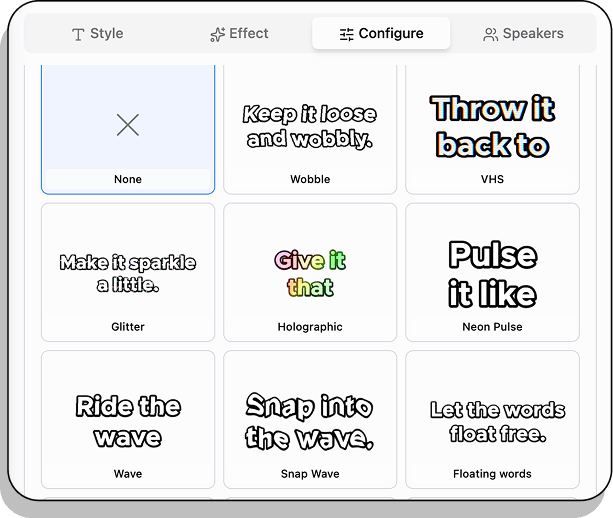
Prefer fully hands-off? Let ClipGPT do it
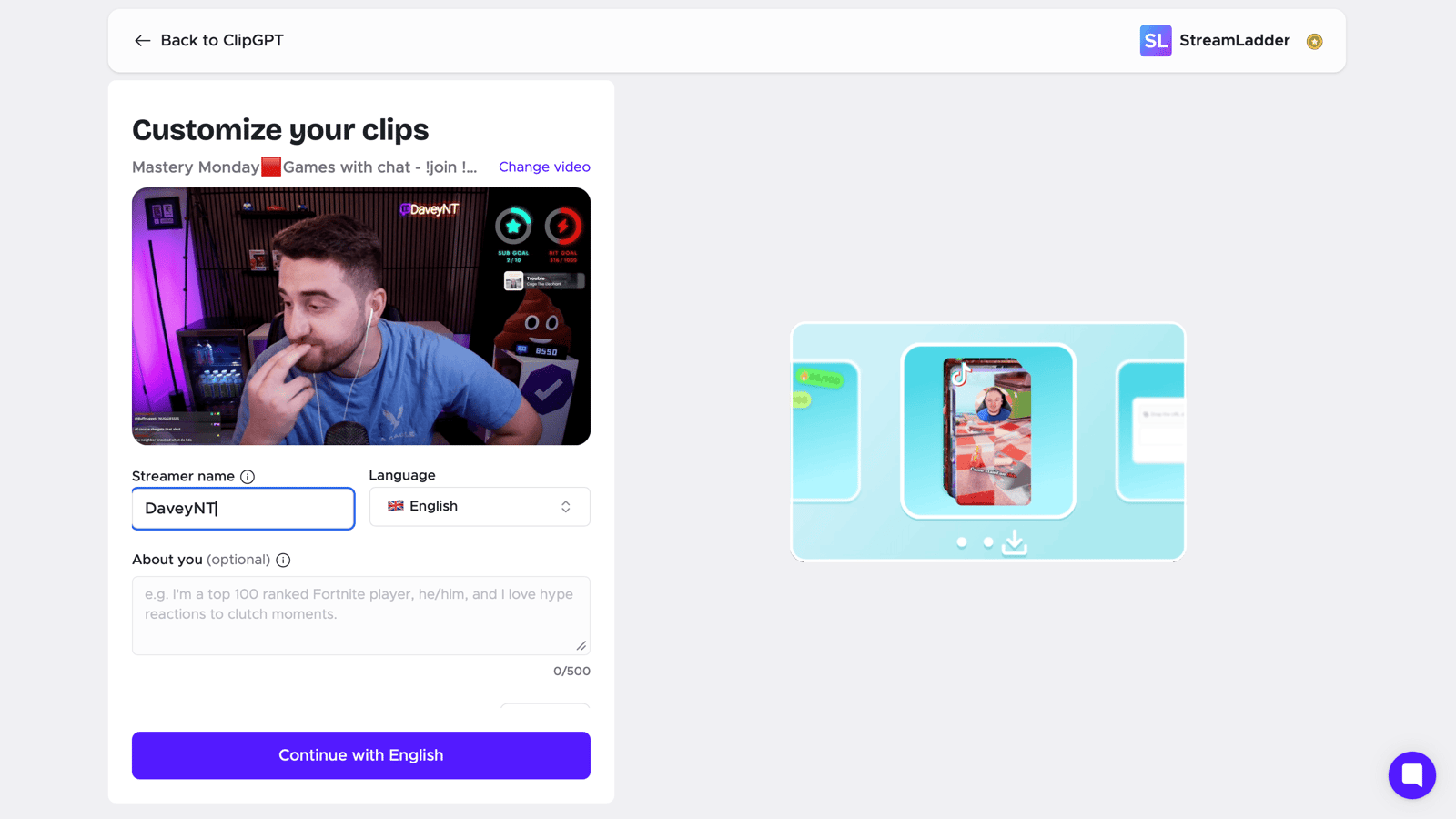
ClipGPT, StreamLadder's AI Twitch clip generator, takes this one step further: it finds the best moments from your streams and turns them into captioned vertical clips automatically. Captions included, no editor needed. You just review and post.
Frequently Asked Questions
Are auto-generated captions accurate?
Very. The AI transcribes the audio and syncs it for you. Gaming slang, emotes, and unusual handles are worth a quick review, which you can fix in a couple of clicks before exporting.
Do captions work in languages other than English?
Yes. The AI recognizes any language automatically.
Can I add captions to a Twitch clip without downloading it first?
Yes. Paste the Twitch clip link straight into StreamLadder. You don't need to download the raw file separately. The same goes for auto captions for stream clips from Kick: paste the Kick clip link and you're set.
Will the captions fit TikTok, Shorts, and Reels?
Yes. The editor works on a vertical 9:16 canvas and keeps captions inside the safe zone, so they aren't hidden behind each platform's on-screen buttons.
Do I have to type anything?
No typing required to get started. Captions are generated automatically; you only edit if you want to tweak wording or fix a misheard word.
Can I restyle the captions?
Yes. Choose from animated presets and adjust font, color, and highlight style so every clip matches your channel's look.
Turn your next clip into a scroll-stopper
Captions are the cheapest upgrade you can make to a stream clip, and they're now the fastest. Instead of hand-typing subtitles in a mobile editor, paste your Twitch or Kick clip into StreamLadder, let it auto-generate animated captions, do a quick review, and post.