Twitch just announced a feature streamers have been asking about for years: say "Twitch, Clip That" out loud mid-stream, and Twitch clips the moment for you. No hotkey, no reaching for the dashboard, no waiting for your audience to catch it.
It's a big quality-of-life win, but the clip itself is only the first step. A raw horizontal clip sitting in your Clips Manager doesn't grow your channel. Here's how the new voice command works, what its limits are, and how to turn every "Clip That" moment into content for TikTok, Reels, and Shorts.
What is Twitch's "Clip That" feature?
Clip That is Twitch's new voice-activated clipping. While you're live, say "Twitch, Clip That" and Twitch automatically creates a clip of the moment that just happened. The clip lands in your Clips Manager (Creator Dashboard → Content → Clips), ready for you to review, trim, and share.
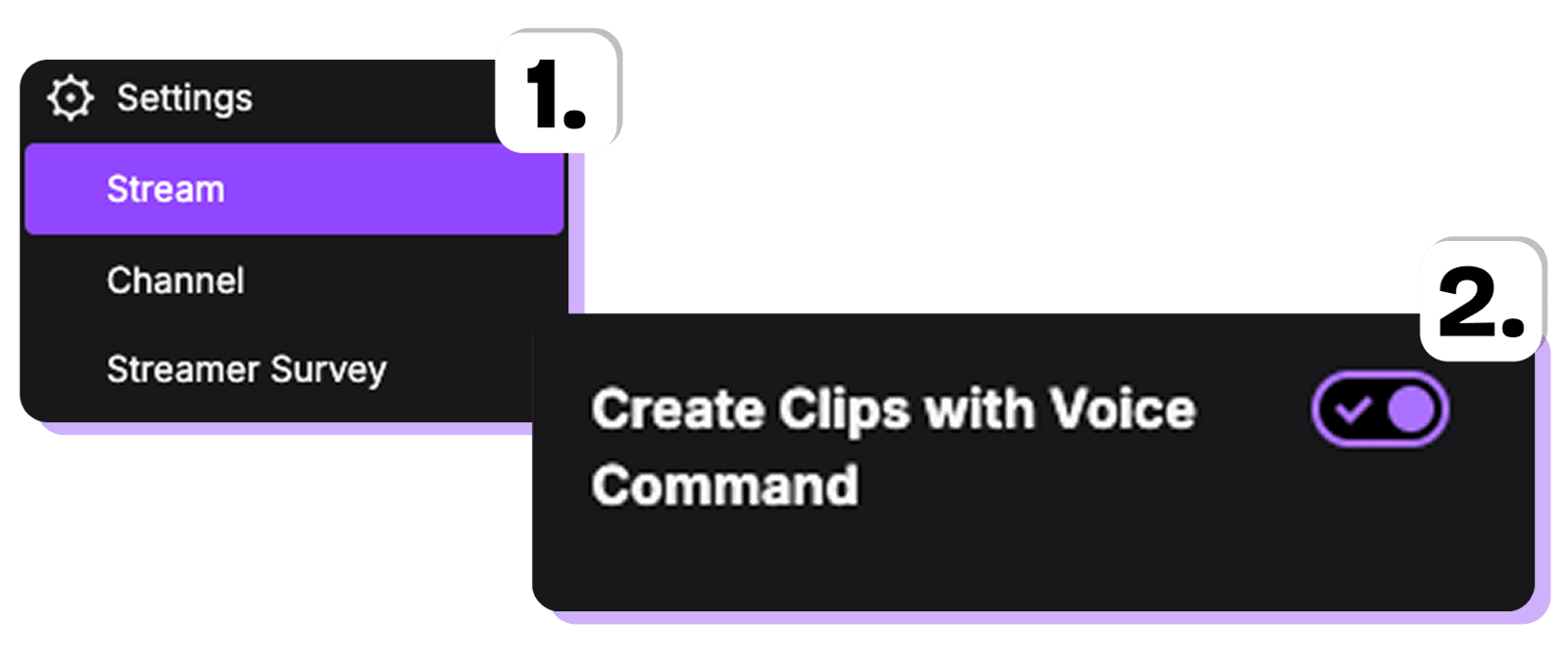
It grew out of Twitch's Auto Clips experiments and is rolling out to Partners and Affiliates first. If you don't see it yet, check your Stream Settings under 'Clips Settings' - that's where Twitch has been handling access.
How to use "Twitch, Clip That" (step by step)
- Check your eligibility. The rollout starts with Partners and Affiliates. Look under Stream Settings → Clips Settings for the Auto Clips / Clip That option.
- Go live as usual. The feature listens for the command on your stream audio.
- Say "Twitch, Clip That" right after a moment you want to keep. Speak clearly enough for your mic to pick it up.
- Review your clip. Open your Clips Manager in the Creator Dashboard. The clip appears there within 30 minutes.
- Trim if needed. Twitch clips run 5-60 seconds, so adjust the clip to the moment that matters.
That's the entire flow. Whether it's mid-boss-fight, mid-game, or mid-rant, you never have to take your hands off the game.
Disadvantages of the 'Clip That' feature worth noting
Here's the limitation that matters for a huge part of the streaming world: at launch, Clip That only understands English. If you stream in Spanish, Portuguese, French, German, Japanese, or any other language, the voice command won't roll out for you the same way.
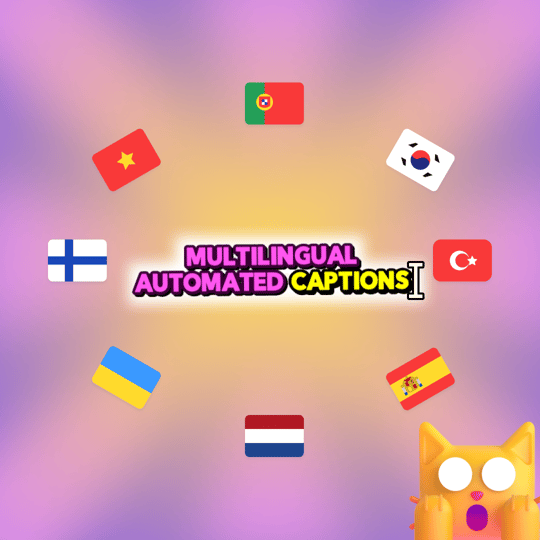
That's worth planning around, because the clipping is the easy half. The hard part is editing, captioning, and posting, where language support really counts. StreamLadder's AI captions recognize any language automatically, so whatever language you stream in, your clips come out captioned and ready for the feed. Twitch's voice command may be English-first; your clip workflow doesn't have to be.
Why isn't 'Clip That' working for me?
If you've said the command and nothing happened, run through this checklist. Clip That has strict eligibility requirements, and missing any one of them silently disables it:
- 'Channel language' is set to English. The voice command only understands English, and your Twitch channel language setting must be English too.
- 'Store past broadcasts' is ON. Clip That needs your VODs to work. Turn this on under Stream Settings.
- 'Always Publish VODs' is ON - and VODs are public. Sub-only VODs don't qualify; your past broadcasts must be publicly visible.
- 'Enable Clips' is ON. If clipping is disabled on your channel, the voice command has nothing to create.
- The 'Auto Clips' toggle is ON. Find it under Stream Settings → Clips Settings.
- You're not streaming in the DJs category. Clip That isn't available there.
Also remember it's rolling out to Partners and Affiliates first. If every toggle is right and it still isn't working, your account may simply not have access yet.
Not eligible, or not streaming in English?
StreamLadder works for every streamer, in any language: our own 'Clip That' voice command understands any language you stream in, and ClipGPT finds your best moments automatically and turns them into captioned vertical clips, no eligibility checklist required.
What to do with your Twitch clips (step 2)
So 'Clip That' filled your Clips Manager with moments. Now what? Posting a raw Twitch clip link goes only so far - to see real growth you need polished short-form content across platforms. Here's the pipeline:
1. Convert Twitch clips to TikTok and Shorts format
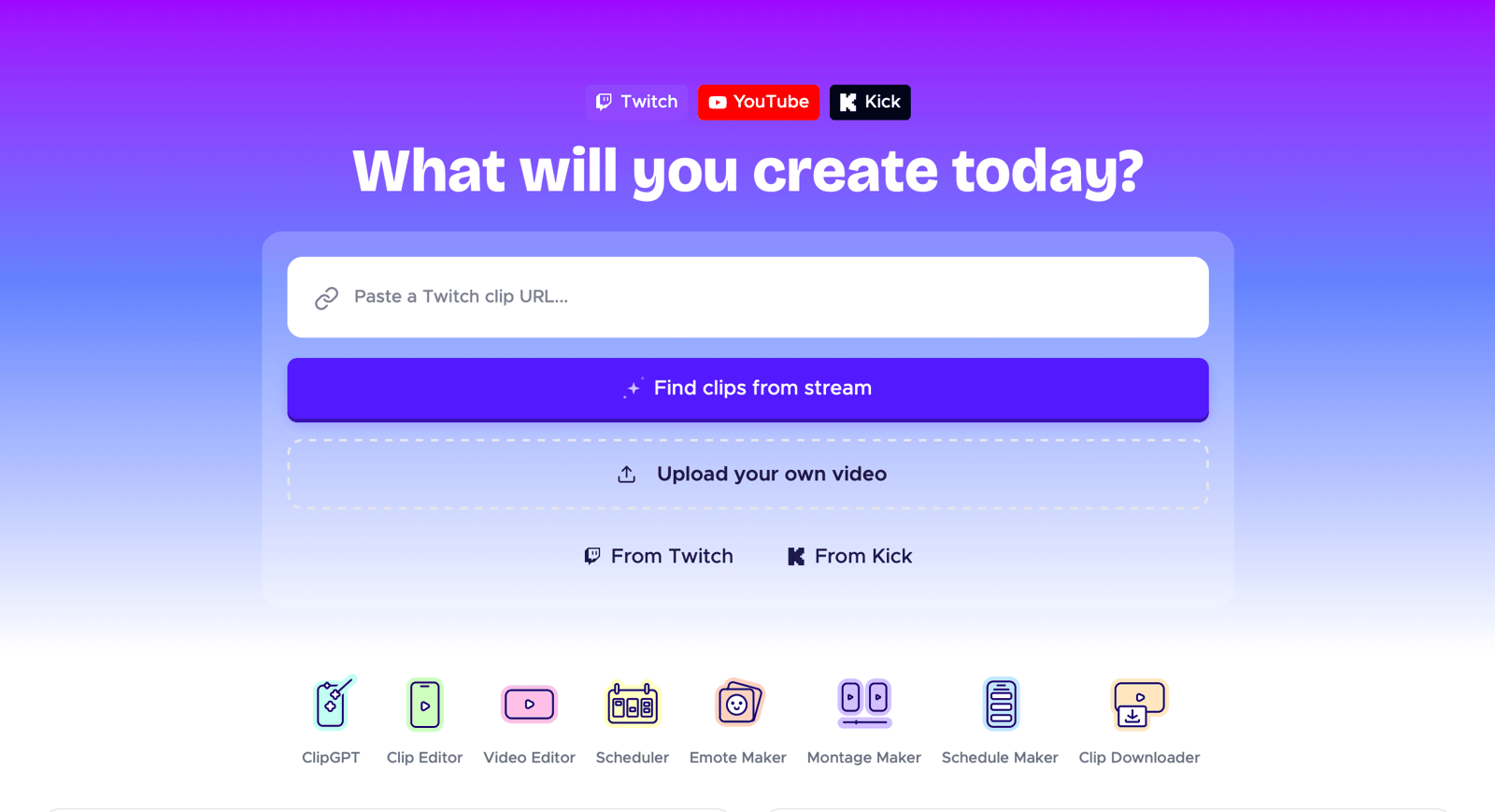
Twitch's vertical cropping is still adequate at best. Paste your clip link into StreamLadder's clip converter (or use the mobile app on iOS and Android) and pick a vertical layout that frames your facecam and gameplay. Takes seconds, works with Kick clips too.
2. Add AI captions in your language
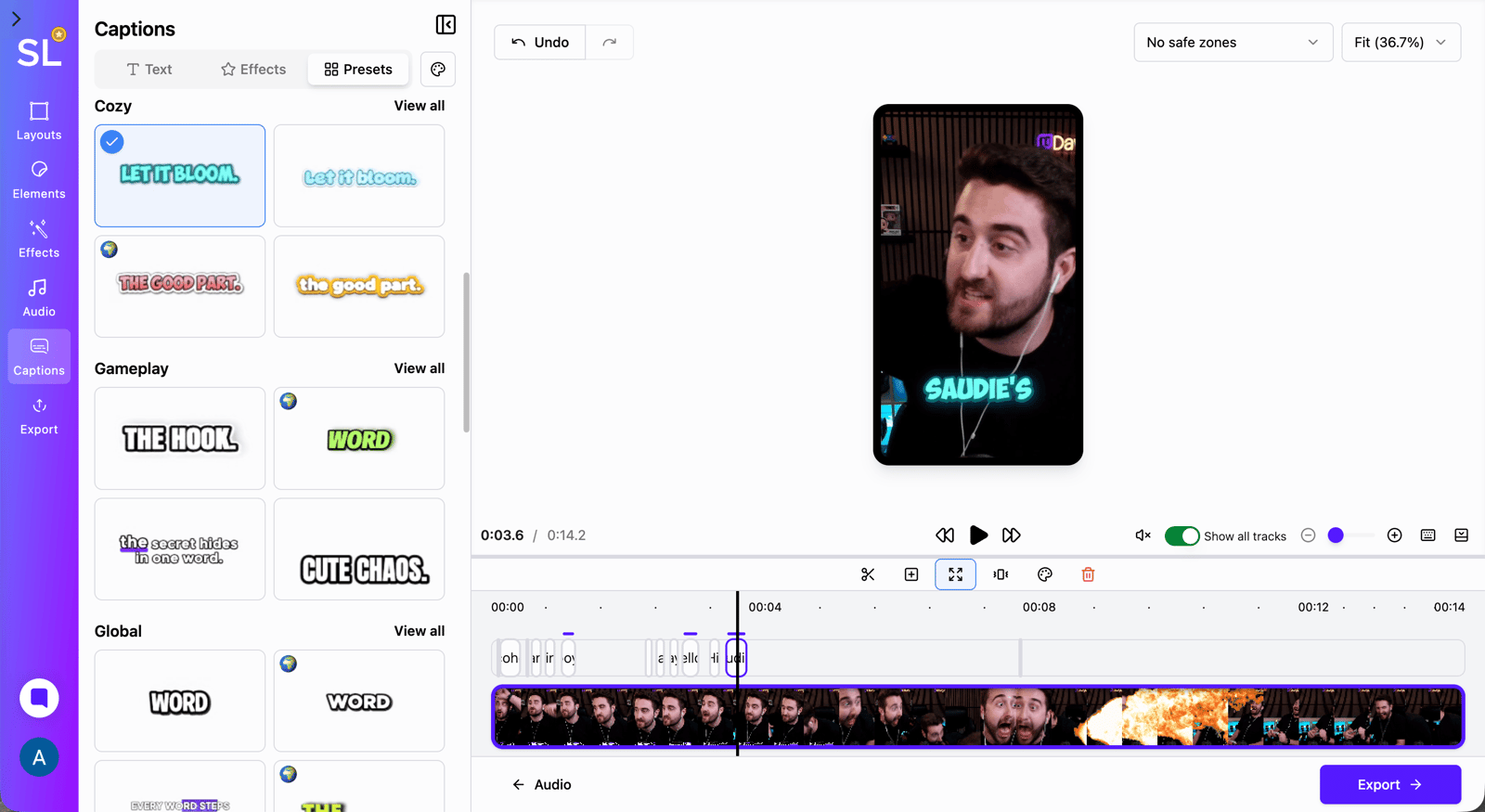
A large part of short-form viewers watch with sound off, so uncaptioned clips get lower engagement. StreamLadder generates accurate, animated captions in whatever language you speak, in any style you see appear in viral videos. This is where non-English streamers flip Clip That's weakness into an advantage.
3. Edit the moment tight
When you post a Twitch clip to TikTok or YouTube Shorts, you're competing in a feed where the average viewer decides in under two seconds whether to keep watching. Trim to the punchline, keep the hook in the first second, and place captions inside TikTok's safe zone (the StreamLadder clip editor shows you exactly where that is).
4. Post fast and consistently
Clips tied to a live moment perform best in the first hours. Publish straight from our app to your socials, or save to your camera roll and upload natively. Streamers who post clips consistently have a higher reach and see faster growth. With Twitch's 'Clip That' feature and StreamLadder's polish, you can have high quality outputs with minimal effort.
Clip That + ClipGPT: cover both bases
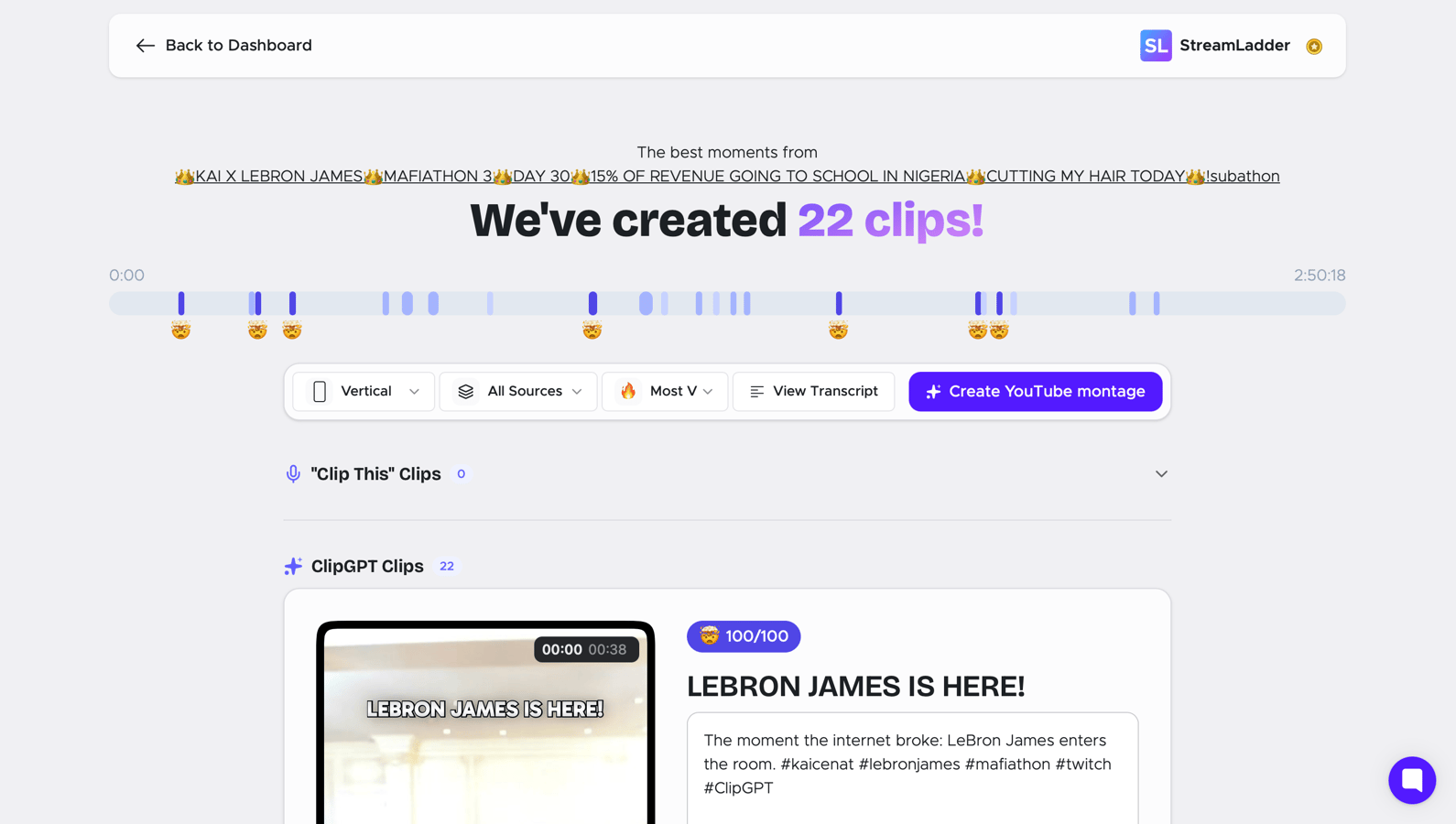
Clip That captures the moments you notice in real time. But not only is it easy to miss such moments, it can also be tiring having to announce it 30x per stream. ClipGPT, StreamLadder's AI clip generator, is the low-effort alternative. It will scan your streams, find the best moments you didn't call out, and turn them into captioned vertical clips automatically within minutes.
Use them together: yell "Twitch, Clip That" when you feel a moment land, let ClipGPT sweep the VOD for everything else, and you'll never lose a highlight again.
Frequently asked questions
How do I turn on Twitch's Clip That feature?
It's rolling out to Partners and Affiliates. Check Stream Settings → Clips Settings in your dashboard; that's where Twitch surfaces Auto Clips access.
Where do 'Clip That' clips go?
Straight to your Clips Manager: Creator Dashboard → Content → Clips. Review and trim them there.
How is StreamLadder's 'Clip That' feature different from Twitch?
Unlike Twitch, StreamLadder's voice command recognises any language. Your editing workflow can still be fully multilingual and you can choose to say the command in any language of your choice.
How do I edit Twitch clips after clipping them?
Trim inside Twitch for length, then use a clip editor like StreamLadder to convert to vertical, add animated captions, and export (or schedule) for TikTok, Reels, and Shorts. Available on desktop or the mobile app.
Can viewers use the voice command?
No. 'Clip That' responds to the broadcaster during their own stream.
Clipping is now hands-free. Make posting just as easy.
Twitch's new 'Clip That' feature gives you freedom to capture the moment on the go. Let StreamLadder take care of the entire post-production workflow: VOD scrubbing, vertical layouts, auto-captioning in any language, and direct posting, so every "Clip That" ends up where your next followers actually are.