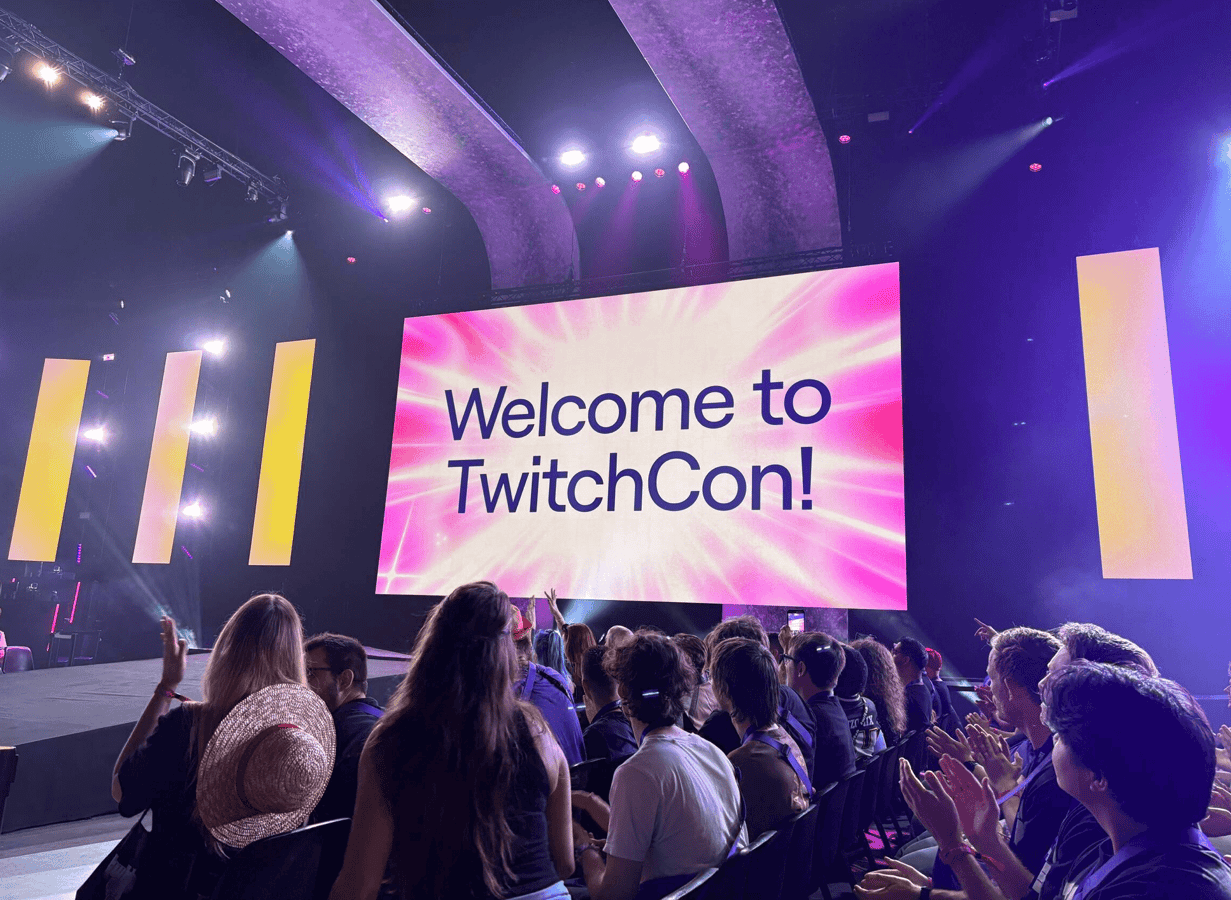
At TwitchCon Europe 2026, Twitch announced that they would be rolling out the ability to automatically add captions to your community clips.
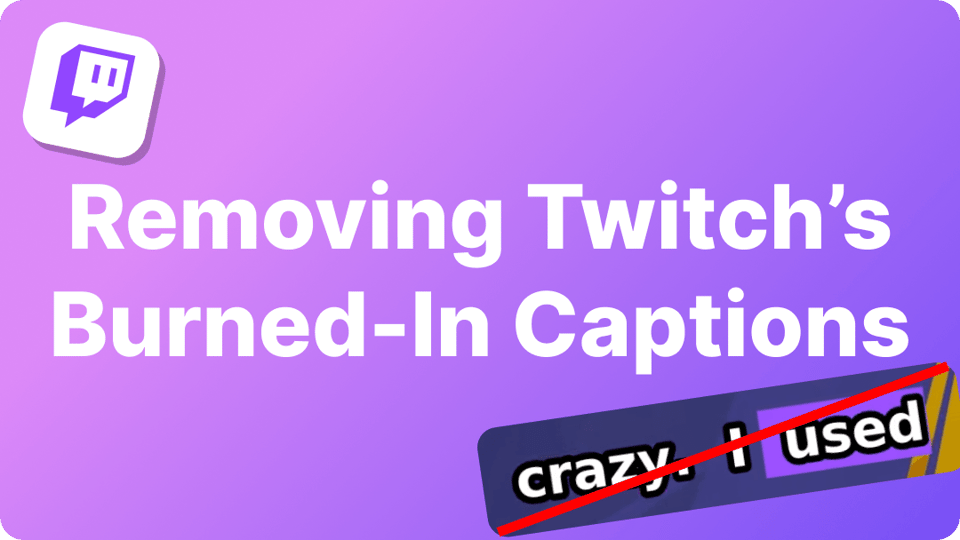
While automatic captions are a great idea in theory, many creators have quickly run into the same problem: the captions are burned directly into the video.
This means that any creator looking to customize their own short-form clips has to deal with Twitch's automatic captions taking over the screen, which can ruin the appeal of your clips on social platforms.
If you've ended up with awkward subtitles, incorrect transcripts, or want more customization to your captions, this guide explains how to remove Twitch's captions and go back to editing that leaves an impact on your viewerbase.
Why can Twitch captions be a problem?
Twitch introduced automatic captions for clips, with a strong connection to their main 'Twitch Auto Clips' feature that creates highlights from your livestreams. These captions are designed to improve accessibility and make clips easier to watch without sound, especially on mobile devices.
Although the idea was praised in concept, the current implementation has several limitations that creators experienced in captioning and editing have pointed out.
1. The captions are burned into the video
Unlike platforms such as YouTube, Twitch doesn't currently add captions as a separate subtitle track. Instead, the captions are rendered directly into the video itself.
This means:
- Viewers can't turn captions on or off.
- If the AI gets something wrong, everyone sees it.
- The captions become part of the video permanently once Twitch finalizes the clip, displays it on your Twitch page, and while exporting clips off the Twitch platform.
2. AI transcription isn't always accurate
Current users of Twitch's AI captions have complained of its inaccurate transcriptions, with limited options available to edit to the correct version. Without a built-in editor, hard-locked captions easily pick up words incorrectly for simple reasons such as creators' accents, unique names, or just general mishearing.
For creators who care about polished content, these mistakes can make otherwise great clips look unprofessional.
3. Limited customization
Currently, Twitch offers very little control over how captions appear.
Creators cannot customize:
- Fonts
- Colors
- Position
- Size
- Overall styling
This means every captioned clip has the same appearance, regardless of your branding - whether you're a brand-new Twitch streamer or an established Twitch Partner.
4. You only have a limited time to remove them
When Twitch creates captioned clips, the non-captioned version is only available for a limited period.
Within approximately 30 days of clip creation, you can remove the captions through the Clips Manager. After that window expires, the captioned version becomes permanent and the original version is no longer available. If you don't notice the captions in time, there isn't a way to recover a clean version later.
How to turn off Twitch Auto Clip Captions
Auto Captions are toggled on by default, making it easy to gloss over and accidentally create a clip with unwanted captions that get in the way of creators' usual editing process.
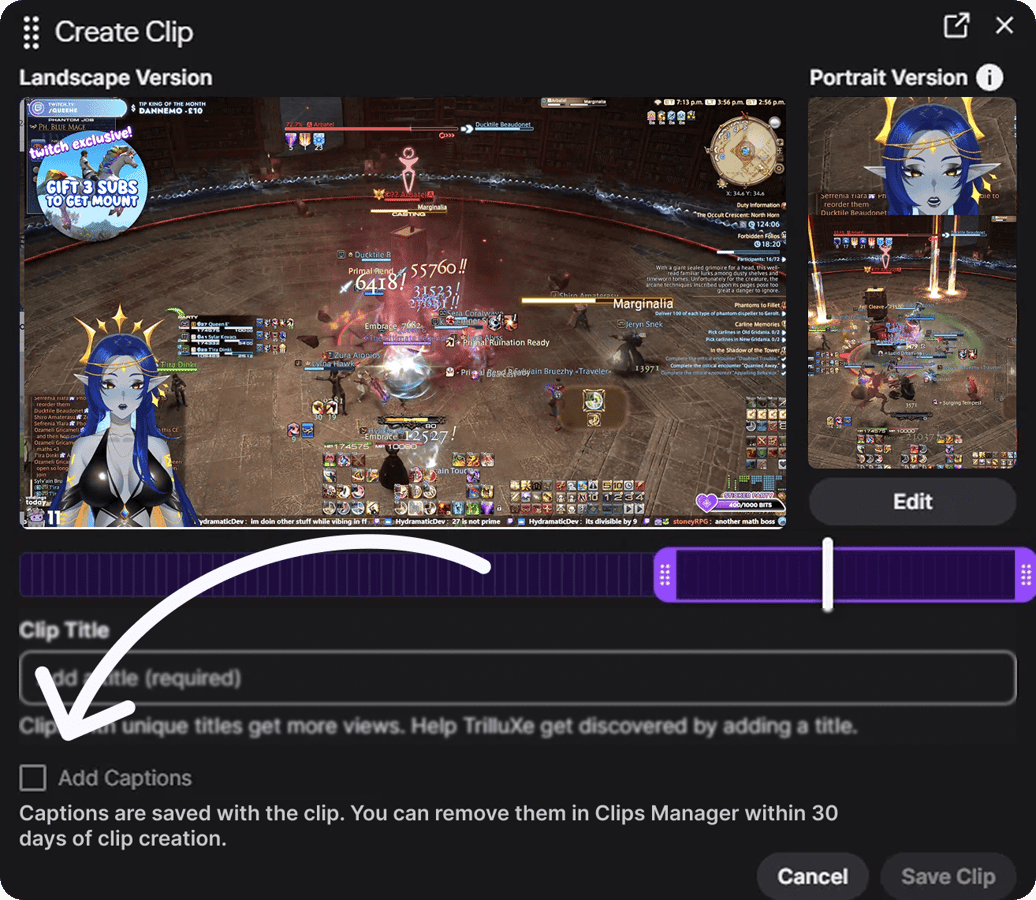
After you have created a Twitch clip and are taken into the 'Edit Clip' page, scroll down under where the 'Feature Clip' option has been to find the automatically checked 'Add Captions' option.
By disabling this, you are free to export, paste the link, or search for these caption-less clips when editing custom captions using tools like StreamLadder.
You can also navigate to your Creator Dashboard, select 'Stream' under the Settings tab, and locate further toggles for 'Allowing viewers to add captions' and 'Add captions when using 'Clip That''. This prevents Community-made clips and clips automatically made after saying 'Clip that' (on purpose or not!) from having these captions also. This way, you can use them for future editing just as easily as your regular captions!
If you've already created captioned clips, you can also remove captions through Clips Manager, provided the clip is still within Twitch's roughly 30-day editing window.
Unfortunately, once that window has passed and Twitch finalizes the captioned version, the captions cannot be removed from the existing clip.
And now... what do I do about captions?
If you want captions that actually improve your content instead of limiting it, StreamLadder offers a much more flexible workflow.
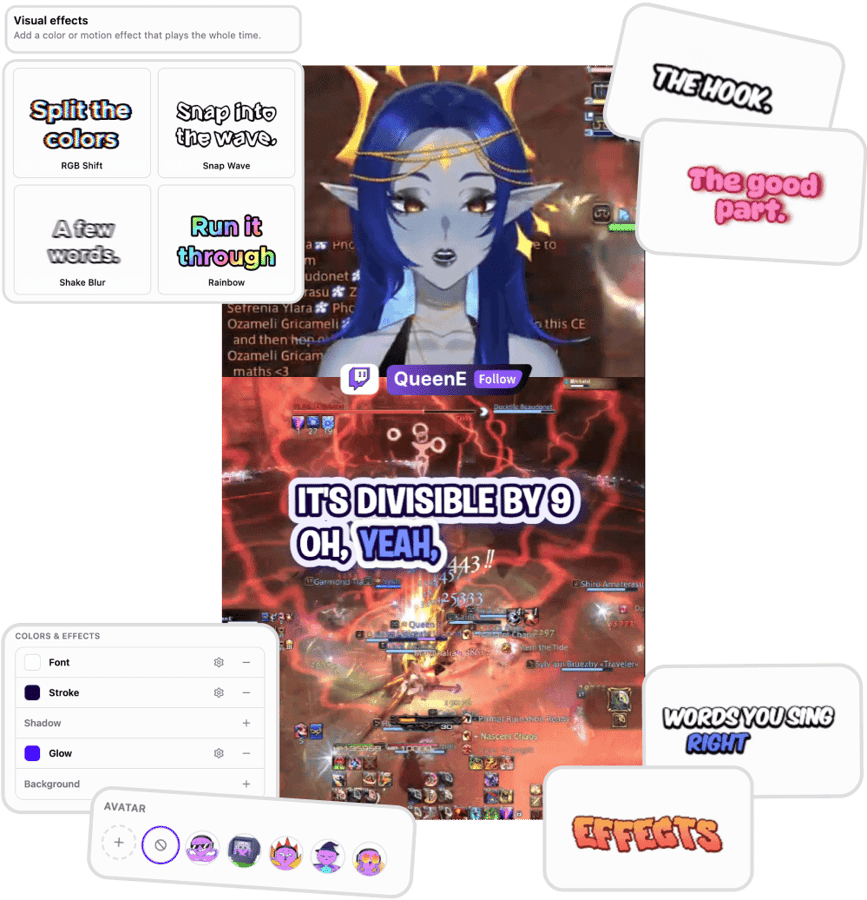
Instead of relying on Twitch's burned-in captions, you can upload or import your clip into StreamLadder and generate captions with far more customization options, and more flexibility in how you want your social content to look. You're in control of the final video rather than accepting Twitch's automatic styling.